Introduction: Visualizing Growth and how to build an SEO dashboard (for beginners)

I distinctly remember the Sunday evening panic that used to define my Mondays. I would sit there with three browser tabs open—Google Analytics, Search Console, and a spreadsheet—manually copying and pasting numbers just to answer a simple question: “Did organic traffic actually grow last week?”
The problem wasn’t a lack of data; it was that the data was scattered, disconnected, and often contradictory. Without a centralized view, I was wasting hours on data entry instead of analysis. If you are a marketing manager, a founder, or an in-house SEO, you likely face this same friction. You don’t need more charts; you need clarity.
In this guide, I will walk you through exactly how to build an SEO dashboard that acts as a compass, not just a mirror. We will cover the metrics that matter, how to build a V1 in Looker Studio, and the common mistakes that make dashboards unusable. By the end, you’ll have a system that answers “what changed, why, and what do I do next?” within seconds.
Quick definition: What I mean by an “SEO dashboard” (vs a report)
It is critical to distinguish between a dashboard and a report. Think of a report as a receipt—it tells you what happened in the past, usually once a month. A dashboard is like a speedometer. It is an always-on, diagnostic tool that shows you current performance trends and helps you make decisions in real-time. A good dashboard doesn’t just show you traffic; it triggers actions like updating content or fixing technical errors.
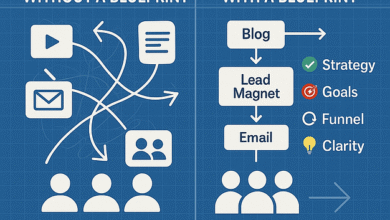
The dashboard blueprint: decide who it’s for, what decisions it supports, and how often it updates

Before you open any tool, you need a plan. The most common failure mode I see is adding every possible metric just because it’s available. A dashboard for a SaaS company looking for demo requests looks very different from a local service business needing phone calls.
To build something you actually use, define these elements first:
- Audience: Is this for the CEO (who wants broad trends) or the Content Lead (who needs page-level details)?
- Primary Goal: Are we tracking revenue, leads, or brand visibility?
- Cadence: Will you review this weekly (tactical) or monthly (strategic)?
- Data Smoothing: For SEO, daily volatility is noise. I typically use 7-day or 28-day rolling averages.
If I am building for a founder, I focus on the bottom line. If it’s for my own daily use, I need drill-down capabilities. Clarity here prevents clutter later.
My “one sentence” dashboard goal (template)
Copy this sentence and fill it out before you start building. It keeps you honest.
“This dashboard helps [Role: e.g., the Marketing Director] monitor [Goal: e.g., organic lead growth] by tracking [KPIs: e.g., non-branded clicks and form fills] weekly so we can decide [Actions: e.g., which articles to refresh].”
SEO metrics that matter: the KPI set I recommend for a comprehensive SEO dashboard

I follow a “North Star + Supporting Metrics” framework. You need to track visibility, engagement, and outcomes. If you only track rankings, you miss the business impact. If you only track revenue, you miss the leading indicators.
Here is the KPI menu I recommend for an intermediate dashboard:
| Metric Category | KPI Name | Source | What I do when it moves |
|---|---|---|---|
| Visibility | Organic Impressions, Clicks, Avg Position | Google Search Console (GSC) | If impressions drop, I check for technical errors or lost rankings. |
| Engagement | Organic Sessions, Engagement Rate | GA4 | If sessions are flat but clicks are up, I check page load speed or tracking issues. |
| Outcomes | Key Events (Conversions), Revenue | GA4 | If revenue drops, I audit the top converting landing pages immediately. |
| Health | Index Coverage, 404 Errors | GSC / Site Audit Tool | If errors spike, I alert the dev team or fix broken links. |
Visibility metrics (Search Console): impressions, clicks, average position
These are your leading indicators. I always look at Impressions first—are people even seeing us? Then Clicks. A common pitfall is obsessing over Average Position. Remember, this is an average across all queries. If you start ranking for a thousand new long-tail keywords at position 80, your average position will worsen, even though your SEO is working.
Engagement + outcomes (GA4): landing-page organic sessions, key events, revenue/leads
In GA4, the unit of SEO work is the Landing Page. I filter for “Session Source / Medium = google / organic” to see exactly how organic traffic behaves. Key Events (formerly conversions) are the ultimate truth. Whether it’s a “contact form submit” or a “demo request,” this connects your work to the bank account.
Authority & off-site signals: backlinks and referring domains (optional, but useful)
I treat backlinks as a health check rather than a daily metric. If you see a massive spike or drop in referring domains, it’s worth investigating, but don’t panic over daily fluctuations. Tools show data differently, and links disappear and reappear often.
Data sources & tracking setup (so my dashboard isn’t lying to me)
The most dangerous dashboard is one that looks accurate but isn’t. I learned this the hard way when I realized a client’s dashboard was reporting zero growth because I had connected the wrong Google Search Console property (http vs https). Before you build, you must validate your sources.
Your Pre-Flight Checklist:
- GA4 Configured: Ensure “Key Events” are marked and collecting data.
- GSC Verified: Connect the Domain Property (sc-domain:) if possible, to capture all subdomains and protocols.
- Timezone Sync: Ensure GA4 and your reporting tool use the same timezone. Mismatches cause weekend data to look weird.
- Internal Traffic: Filter out your own team’s IP addresses in GA4 so you aren’t tracking your own QA testing.
Minimum sources for beginners (the “start here” stack)
If you are just starting, you only need two things: Google Search Console (for what happens before they click) and Google Analytics 4 (for what happens after). This combination is free, powerful, and covers 90% of the questions stakeholders ask.
Optional sources to add later: rank tracking, backlinks, Google Business Profile, paid search context
Once you are comfortable, you can layer in complexity. For local businesses, Google Business Profile insights are non-negotiable. For competitive niches, a dedicated rank tracker (like SE Ranking or Semrush) provides more granular data than GSC. Paid search data can also be useful to see if you are cannibalizing your own traffic.
Choosing tools: Looker Studio vs all-in-one suites (Semrush/SE Ranking) vs automated pipelines

Choosing the right tool depends on your budget, your patience, and your need for customization. Based on market research, AI tool usage among consumers has nearly doubled from early 2024 to mid-2025 (approx 14% to 29.2%) , suggesting that modern dashboards should eventually integrate AI performance metrics. However, for the foundation, you have three main paths:
| Approach | Examples | Pros | Cons | Best For |
|---|---|---|---|---|
| Custom Build | Looker Studio | Free, infinite flexibility, multi-source blending. | Steep learning curve, connectors break occasionally. | In-house marketers who need specific, custom views. |
| All-in-One Suites | Semrush, SE Ranking | Fast setup, stable, white-label, scheduled emails. | Monthly cost, less layout flexibility. | Agencies needing client reports fast. |
| AI Automation | Kalema, SnowSEO | Integrated AI content writer workflows, automated insights. | Newer category, varying feature sets. | Teams scaling SEO content generator outputs. |
When I pick Looker Studio (flexibility, cost, custom views)
I lean towards Looker Studio (formerly Data Studio) when I need to tell a specific story. If I want to blend GSC data with a Google Sheet of my content calendar, Looker is the only free way to do it. It allows me to build a dashboard that fits my brain.
When an all-in-one suite is better (speed, unified workflows, white-labeling)
If I had two hours to build a report for a client, I wouldn’t use Looker Studio. I’d use a report builder from a suite. They are drag-and-drop, they don’t break, and they look professional out of the box. If you don’t want to maintain API connectors, pay for the convenience.
Where AI automation fits (and why dashboards need to evolve)
We are seeing a shift where dashboards aren’t just for looking back—they are for guiding AI workflows. Tools are emerging that don’t just report traffic but analyze it to suggest your next AI SEO tool action. I am adding an “AI lens” to my reporting now—tracking which queries are informational vs. transactional—to understand where AI Overviews might impact my traffic.
How to build an SEO dashboard (step-by-step) in Looker Studio

Let’s build a V1 dashboard. This process assumes you have your GSC and GA4 accounts ready. I recommend a simple architecture: Executive Summary → Drill-Downs (Pages & Queries) → Technical Health.
Step 1 — Start with V1 pages: Executive snapshot + two drill-down pages
Don’t try to build the Starship Enterprise on day one. Start with three pages. Page 1 is the Executive Snapshot (the “So What?”). Page 2 is Query Performance (what are people searching?). Page 3 is Landing Page Performance (what content is working?). This structure forces you to separate high-level trends from diagnostic details.
Step 2 — Connect sources (GSC + GA4) and set date controls
Open Looker Studio and click “Create”. You’ll be asked to add data.
- Select the Google Analytics connector. Choose your property.
- Select the Google Search Console connector. Choose “Site Impression” for query data and “URL Impression” for landing page data. Common Oops: Connecting the wrong property is the #1 mistake I see. Check the URL carefully.
- Add a Date Range Control to the header. Set the default to “Last 28 Days” (or Last Month) and enable “Compare to previous period.”
Step 3 — Build the Executive Snapshot (the “so what” page)
On your first page, place 4-6 “Scorecard” charts at the top. I typically include: Organic Sessions, Organic Key Events, Total Clicks, and Average CTR. Underneath, add a Time Series chart showing Clicks vs. Impressions over time. This gives you an instant pulse check. I also manually add a text box for “Annotations”—a place where I type notes like “Launched Holiday Guide on Oct 15.” Context is king.
Step 4 — Create a Queries & Pages view (diagnostics: what moved?)
On your drill-down pages, tables are your best friend. Create a table for Top Queries. Add columns for Impressions, Clicks, CTR, and Position. Crucially, set the comparison date range so you can see the “Delta” (change). If you see a query with high impressions but low CTR, that’s your optimization target. Do the same for Top Landing Pages.
Step 5 — Add conversion context (tie SEO to revenue/leads)
Connect the dots. On your Landing Page table, pull in “Key Events” from GA4. Now you can see not just which page gets traffic, but which page gets customers. I don’t expect perfect attribution here—marketing is messy—but directional truth is enough to make decisions.
Step 6 — QA the dashboard (my sanity-check routine)
Before you share this, you must QA it. My “SEO crash” moment happened when I presented a dashboard that showed zero traffic because a filter was set to “Country = Antarctica” by mistake.
- Check Totals: Do the sessions in Looker match the sessions in GA4? (They should be close, if not exact).
- Check Dates: Does the date picker actually change the charts?
- Check Filters: Are you accidentally filtering out mobile traffic?
Make the dashboard usable: UX patterns, drill-down design, and beginner-friendly onboarding

If someone else opens your dashboard, they shouldn’t need to Slack you to understand it. I follow a few UX rules to keep things human-friendly. First, I use a “glossary panel”—a small text box in the footer that defines terms like CTR or Key Events. It saves face for stakeholders who might be too embarrassed to ask.
My “3-click rule” for diagnosing a traffic drop
Design your navigation for speed. If traffic drops, I want to diagnose it in three clicks: 1) Check the Executive Trend (is the drop sitewide?). 2) Click to the Landing Pages tab (is it a specific page?). 3) Click to the Queries tab (did we lose a specific keyword?). If you can’t flow through that logic smoothly, your layout needs work.
Labeling and annotations: turn charts into explanations
Data without context is just noise. I keep a “Changelog” table on the last page of my dashboard. Every time we ship a site change, update a plugin, or publish a major content cluster, I add a row. When a client asks “Why did traffic spike in May?”, I can point to the changelog rather than guessing.
Automate, maintain, and scale: scheduling, alerts, and a content-to-dashboard workflow

A dashboard is only useful if it’s alive. I schedule a PDF delivery of the Executive Snapshot to my inbox every Monday morning. This forces me to look at it even if I’m busy. But beyond just looking, you need to tie this to your production. If you use an AI article generator to scale content, your dashboard should track the performance of those specific URLs.
Simple alerts I set (and what I do when they trigger)
I don’t want to watch the dashboard 24/7. I let alerts do the watching. Here is my simple alert matrix:
- Clicks down > 15% WoW: First check -> Is it a holiday? Likely fix -> Check GSC for manual actions or index issues.
- 404 Errors Spike: First check -> Did we delete a page? Likely fix -> Set up 301 redirects.
- Key Events drop to zero: First check -> Did the tracking tag break? Likely fix -> Debug GA4.
Common mistakes & fixes (so my SEO dashboard stays trusted)
I’ve made plenty of mistakes building these. Here are the big ones to avoid so you don’t lose credibility.
Mistake 1: Building a “pretty” dashboard that doesn’t answer decisions
I used to spend hours on color palettes. Nobody cares. If I can’t name the specific action a chart drives, I remove it. If a chart says “Traffic is up,” that’s nice. If it says “Traffic is up because the blog is performing,” that’s actionable. Ruthlessly prune your views.
Mistake 2: Not segmenting (brand vs non-brand, device, location)
Aggregate data lies. If your “Total Clicks” are flat, it might hide a disaster where your non-brand traffic tanked while your brand traffic spiked. Always segment. In Looker Studio, I create a calculated field to separate Brand queries from everything else. It changes the entire narrative.
Mistake 3: Trusting numbers without QA and definitions
Data lag is real. GSC data is often 48 hours behind. If you look at “Yesterday’s” performance, it will look terrible. Always add a note about data freshness so you don’t give your boss a heart attack unnecessarily. My personal rule: never report on the last 3 days of SEO data.
FAQs + wrap-up: tools, AI trends, and my next steps checklist
What is the best free tool for building a custom SEO dashboard?
Hands down, it is Looker Studio. It connects natively to Google’s ecosystem (GA4, GSC, Ads, YouTube) for free. While it has a learning curve, the ability to blend data and customize every pixel makes it the professional’s choice for cost-effective reporting. Just be prepared to handle the setup yourself.
Should I use an all-in-one SEO suite or build a dashboard from multiple tools?
If you value time and “white-label” polish over flexibility, use a suite like Semrush or SE Ranking. They are fantastic for automated client reporting. If you need to tell a specific data story—like correlating weather data with search volume (I’ve done it)—you need the custom power of a dashboard builder like Looker Studio.
How are AI tools changing SEO dashboards?
AI isn’t just writing content; it’s analyzing it. We are moving toward AI SEO tools that provide “automated insights”—telling you why traffic dropped without you digging through tables. I recommend keeping your dashboard modular so you can integrate these new AI-driven metrics as they become standard. Use AI to speed up the analysis, but keep your human judgment for the strategy.
How do I make dashboards more user-friendly for intermediate users?
Use the “newspaper” approach. Headline first (Executive Summary), details later (Drill-downs). Add tooltips or a “How to read this” text box next to complex charts. Treat your dashboard like a product you are designing for a user—because you are.
Recap & Next Steps:
Building an SEO dashboard is about reducing anxiety and increasing action. You don’t need to be a data scientist; you just need to be organized.
- Connect: Hook up GA4 and GSC to Looker Studio today.
- Build V1: Create just three pages: Snapshot, Queries, Landing Pages.
- Routine: Schedule a weekly 15-minute review with yourself to check the trends.
If I were starting today, I’d block out two hours this Friday to get V1 live. The clarity you get on Monday morning will be worth every minute.