Introduction: how to add internal links in WordPress (and why I treat it like a checklist)

I used to publish posts and forget to connect them. Six months later, I couldn’t even find those articles from my own homepage, and neither could Google. It’s a sinking feeling to realize you’ve poured hours into content that is effectively invisible because it lacks a digital pathway.
If you are managing a business site—whether it’s for a local service, a SaaS brand, or an agency—you likely face a similar challenge: your content library is growing, but your rankings have plateaued. You know internal linking is important, but without a system, it becomes an afterthought.
By the end of this guide, you won’t just know how to add internal links in WordPress technically; you will have a repeatable workflow to do it strategically. We will cover the mechanics of the block editor, the logic behind topic clusters, and the maintenance routines that keep your site healthy. This isn’t about SEO hacks; it’s about building a site structure that makes sense for users and search engines alike.
What internal links do for SEO and users (the business case in plain English)

Internal links are simply hyperlinks that point from one page on your domain to another page on the same domain. While they seem basic, they are the nervous system of your website. When implemented correctly, they solve two massive problems: navigation and authority distribution.
From a user experience (UX) perspective, internal links guide visitors to the solution they need next. If someone is reading about “commercial HVAC repair,” a link to your “request a quote” page isn’t just an SEO tactic; it’s a necessary bridge for conversion.
From an SEO perspective, internal links pass “link equity” (authority) from your high-power pages to your newer or deeper content. They also provide crawl paths for search engine bots. If a page has no internal links pointing to it, Google struggles to find it, index it, or rank it.
Here is what the data tells us about the impact of strategic linking:
- Contextual relevance wins: Contextual in-content links receive 3–4 times more clicks than navigational links in sidebars or footers.
- Ranking movement: Pages receiving just 5–10 internal links often climb 10–20 positions in search rankings.
- Traffic retention: Sites plagued by broken internal links can lose up to 15% of their organic traffic due to poor user experience.
| Link Type | Placement | SEO Impact | Best Use Case |
|---|---|---|---|
| Contextual | Within body paragraphs | High (passes strong relevance signals) | Connecting related topics or defining terms |
| Navigational | Header menu, Sidebar | Medium (defines site hierarchy) | Core pages (Services, About, Contact) |
| Footer | Bottom of page | Low (often ignored by users) | Legal, Policy, Sitemap, Address |
Internal links vs external links (quick definitions)
To keep it simple: Internal links are hallways connecting rooms inside your own house (your domain). External links (or outbound links) are doors leading out to the neighborhood (other websites). While external links cite sources and build trust, internal links keep visitors on your property longer, increasing the chances they will convert into a lead or customer.
Why contextual links in body content usually win
Search engines don’t treat all links equally. A link buried in a footer implies, “This is administrative info.” A link inside a sentence implies, “This is critical context for what you are reading right now.”
Search engines use the text users click on—the anchor text—to understand what the destination page is about. Because the surrounding text provides context, these links carry more weight. If I can only add a few links to a post, I put them in the paragraph where the reader is already asking the question, rather than dumping them in a “Related Posts” section at the bottom.
Before you add links: map your site structure (pillar pages, clusters, and priorities)

The biggest mistake I see beginners make is linking randomly. They write a post and think, “Oh, I should link to something,” so they link to the last post they wrote. This creates a messy, tangled web rather than a clear structure.
Before you start clicking in WordPress, you need a basic plan. This is often called the Topic Cluster or Pillar-Spoke model. Implementing a topic cluster model can lead to a 50% increase in organic traffic within six months because it establishes you as an authority on a specific subject.
Here is a simplified workflow you can use immediately:
- Identify a Pillar Page: This is a broad, high-level guide (e.g., “Ultimate Guide to Accounting for Small Business”).
- Identify Spoke Pages: These are specific supporting articles (e.g., “Tax Deductions,” “Payroll Software,” “Bookkeeping Basics”).
- Link Them: The Pillar links to all Spokes. All Spokes link back to the Pillar. Spokes link to each other where relevant.
You don’t need a perfect spreadsheet to start—just focus on your top 10 pages initially.
Pick your priority pages (money pages) and supporting content
I start by listing the pages that directly drive revenue—my “money pages.” These are usually service pages, product categories, or high-conversion blog posts. These pages need the most internal link love. Whenever you write new content, ask yourself: “Can this new article logically link to one of my money pages?” If the answer is yes, that link is a priority.
Find and fix orphan pages early
An orphan page is a page that exists on your site but has zero internal links pointing to it. It’s like a room in a house with no door. Users can’t click to it, and crawlers rarely find it. This happens to everyone—especially with old promo pages or legacy blog posts. We will discuss how to find these later, but the goal is to ensure every piece of content has at least one incoming link from a related page.
Step-by-step: how to add internal links in WordPress (Block Editor and Classic Editor)

Now, let’s get into the actual execution. Adding internal links in WordPress is mechanically simple, but doing it efficiently requires muscle memory. Whether you are using the modern Block Editor (Gutenberg) or the Classic Editor, the principles remain the same: precise selection and accurate destination confirmation.
Add an internal link in the Block Editor (Gutenberg)
Most business sites today use the Block Editor. Here is the exact process:
- Highlight the text you want to turn into a link (your anchor text).
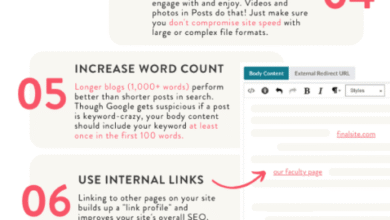
- Click the Link icon in the floating toolbar above the block. Alternatively, use the keyboard shortcut Ctrl+K (Windows) or Cmd+K (Mac)—this saves hours over the course of a year.
- Search or type URL: In the search bar that appears, start typing the title of the internal page you want to link to. WordPress will auto-suggest existing content.
- Select the correct page: Click on the correct post from the list.
- Press Enter or click the “Submit” arrow to apply the link.
Pro Tip: I always confirm the destination by opening it in a preview tab, especially if I have multiple posts with similar titles (e.g., “SEO Guide 2023” vs. “SEO Guide 2024”). Linking to the wrong version is a tiny mistake that frustrates users.
Add an internal link in the Classic Editor
If you are maintaining an older site or prefer the Classic Editor, the flow is slightly different:
- Highlight your anchor text.
- Click the Insert/edit link button in the toolbar (it looks like a chain link).
- Click the Gear icon (Link Options) if you want to search your existing content visually.
- Select your target page from the list and click Add Link.
Link images, buttons, and CTAs (without hurting UX)
Text isn’t the only place for links. Buttons and images are powerful navigation tools, particularly for mobile users.
- Buttons: In the Block Editor, add a “Button” block. Type your text (e.g., “Get a Quote”), then click the link icon on the toolbar to set the internal destination. Keep the text descriptive—avoid generic “Click Here” buttons.
- Images: Click on an image block, select the link icon, and choose “Media File” or “Custom URL.” Paste your internal URL there.
Warning: Be careful linking non-obvious images. If a user clicks an infographic expecting to zoom in but gets taken to a different page, it’s frustrating. Ensure linked images look like clickable elements.
Add multiple internal links efficiently while editing (my quick workflow)
When I’m editing a post, I don’t want to break my flow every two minutes. Here is my quick workflow:
I draft the content first. Then, during the editing pass, I do a specific “linking scan.” I look for opportunities to add 2–3 contextual links to older, high-authority posts and 1–2 links to priority service pages. Finally, I check if there are any immediate supporting pages that define complex terms. This takes me about 5 minutes per post once I have a plan, ensuring the links are relevant rather than forced.
Internal linking best practices that actually move rankings (anchor text, placement, and frequency)

Technical implementation is easy; strategy is where you win. You can add links all day, but if the anchor text is weak or the placement is irrelevant, you won’t see the business results you want. Using tools like Kalema can help you plan content clusters and anchor strategies consistently at scale, but you still need to understand the core rules of engagement.
Anchor text: what to write (and what to stop writing)
Anchor text is the visible, clickable text in a hyperlink. Search engines use this to understand what the target page is about. Using generic text like “click here” or “read more” is a wasted opportunity.
However, you also want to avoid “over-optimizing” by using the exact same keyword every single time, which can look spammy. Aim for descriptive, natural variety.
- Bad Anchor: Click here to see our services.
- Good Anchor: Review our commercial plumbing services.
- Bad Anchor: Read this post.
- Good Anchor: Learn more in our guide to email marketing automation.
If I’m unsure, I ask myself: “Would this anchor text make sense to a user if they saw it out of context?” If the answer is yes, it’s a good anchor.
How many internal links per post? A practical guideline for beginners
I often get asked, “How many links is too many?” There is no hard penalty, but there is a point of diminishing returns. Too many links distract the reader and dilute the value of each link.
A solid rule of thumb is approximately 1 internal link per 100 words. For a 1,200-word article, that’s around 8–12 internal links. However, I’d rather have 5 highly relevant links that people actually click than 20 random ones. Quality always beats quantity.
Should you use nofollow on internal links?
Generally, no. You should almost never use the rel="nofollow" attribute on internal links. Nofollow tells search engines, “Don’t follow this link and don’t pass authority.” You want authority to flow freely through your site. The only exceptions are login pages or admin areas that you don’t want indexed.
Scaling internal linking: automation tools, plugins, and where they help (and don’t)

If you have 500+ posts, manually finding every linking opportunity becomes impossible. This is where automation helps, especially for agencies or large affiliate blogs. However, automation should “assist + review,” not “set and forget.” Even advanced platforms like Kalema’s AI article writer are designed to streamline the creation process, but strategic oversight ensures your linking structure supports your specific business goals.
Plugin comparison table: suggestions, bulk linking, and orphan detection
There are several powerful WordPress plugins that assist with internal linking. Here is a quick breakdown of the top contenders:
| Plugin | Key Features | Best For | Caution |
|---|---|---|---|
| Link Whisper | AI suggestions, bulk editing, orphan reports | Large sites needing bulk fixes | Can suggest irrelevant links; review manually. |
| AIOSEO Link Assistant | Orphan reports, suggestions inside editor | Users already using AIOSEO | Requires premium plan for full features. |
| Rank Math | Basic suggestions, pillar content marking | General SEO hygiene | Less powerful for bulk linking than dedicated tools. |
| Internal Link Juicer | Automated keyword-to-link matching | Automating specific keyword links | Can over-optimize anchors if not configured carefully. |
A simple ‘manual + assisted’ workflow I recommend
My preferred approach is a hybrid one. I write and link manually first to ensure the most critical context is captured. Then, I use a plugin like Link Whisper to scan the draft. It often finds 2–3 opportunities I missed in older posts that relate to my new topic. I approve the good ones and ignore the bad ones. This saves me time without surrendering control.
Audit, fix, and maintain your internal links (broken links, orphan pages, and redirect chains)

Internal linking isn’t a one-time task; it’s hygiene. Just like you brush your teeth to prevent cavities, you audit links to prevent link rot. Broken links happen naturally—slugs change, pages get deleted, and migrations happen. If you use an automated blog generator to scale your content, having a maintenance routine is even more critical to ensure your growing library remains interconnected and healthy.
How often should I audit internal links?
For most small-to-mid-sized business sites, a monthly audit is sufficient. If you are publishing daily, you might want to check weekly. You should also run an immediate audit after any site redesign, URL structure change, or migration. Put it on a recurring calendar reminder so it doesn’t get forgotten.
Common internal linking mistakes (and how I fix them)
- Broken Internal Links: Links pointing to 404 pages. Fix: Use a plugin like Broken Link Checker or a tool like Screaming Frog to find them, then update or remove the link.
- Orphaned Content: Pages with zero incoming links. Fix: Search your site for related keywords and add 2–3 links from older posts to the orphan page.
- Redirect Chains: Page A links to B, which redirects to C. This slows down crawling. Fix: Update the link on Page A to point directly to Page C.
- Generic Anchors: Too many “click here” links. Fix: Rewrite them to be descriptive (e.g., “read our SEO guide”).
- Navigation Overload: Relying solely on menu links. Fix: Ensure you have contextual text links within the body content.
Minimum viable internal link audit checklist (beginner-friendly)
If I only have 30 minutes to improve a site’s health, this is exactly what I do:
- Pick your top 10 money pages. Check that they each have at least 5–10 internal links pointing to them.
- Run a broken link scan. Fix the internal broken links first (these are the highest priority for UX).
- Check for orphans. Identify the most recent 5 posts and ensure they are linked from somewhere else on the site.
- Review anchor text. Glance at the links pointing to your home page and services—ensure they aren’t spammy or identical.
Conclusion: my internal linking routine you can copy today
You don’t need a perfect system to see results—you just need a consistent one. Internal linking is one of the few SEO levers you control 100%. You don’t need to email anyone for permission or pay for placement; you just need to connect your own dots.
Here is the summary of what matters most:
- Plan before you link: Know your pillar pages and supporting clusters.
- Context is king: Prioritize descriptive anchor text within the body paragraphs.
- Maintain the health: Fix broken links and orphans monthly.
Your next actions:
- Choose your top 3 priority “money pages.”
- Find 3 older blog posts related to each money page.
- Add a descriptive contextual link from those older posts to your money pages.
- Run a quick broken link check on your site today.
Start small. Even fixing five links today can clear a path for your next customer.