Introduction: the “connectivity check” I run before I trust a site’s navigation

I still remember the first time I audited a client’s “Resources” hub. It looked beautiful on the surface. But when I started clicking, I hit three dead ends in less than a minute. Important guides were buried four clicks deep, and the “Get Started” button linked to a redirect chain that added two seconds to the load time.
That’s why I don’t trust a sitemap until I’ve run what I call a “connectivity check.” It’s not just about finding 404 errors; it’s about diagnosing the invisible friction that stops users from converting and prevents Google from indexing your best work. If your internal linking structure is messy, you are essentially hiding your content from the people trying to find it.
In this guide, I’m going to walk you through the exact internal link audit workflow I use. We’ll cover how to find orphaned pages, fix broken crawl paths, and prioritize fixes based on business impact. No fluff, just the steps needed to get your site architecture working for you again.
What an internal link audit is (and why it improves navigation, SEO, and AI visibility)

An internal link audit is a health check for your site’s architecture. Think of your website as a building and internal links as the hallways. If the hallways are blocked (broken links), too long (deep click depth), or don’t exist at all (orphaned pages), nobody can get to the destination—no matter how nice the room is inside.
When I run an audit, I am specifically looking for these structural failures:
- Broken links: Paths that lead to 4xx errors, frustrating users and wasting crawl budget.
- Orphaned pages: High-quality content that has zero internal links pointing to it.
- Redirect chains: Links pointing to a URL that redirects to another, delaying access.
- Deep pages: Content buried more than 3-4 clicks away from the homepage.
- Weak anchor text: Generic “click here” links that tell search engines nothing about the destination.
The business case for fixing this is strong. Data suggests that implementing a hub-and-spoke model can drive organic traffic increases of around 50% within six months. Furthermore, cleaning up your linking structure helps AI search engines (like SearchGPT or Gemini) understand the semantic relationships between your topics, increasing your chances of being cited as an authority. Even simple changes, like ensuring you have 3–5 contextual links per page, can significantly improve how equity flows through your site.
However, there is a tradeoff. You can’t just spray links everywhere. Too many links dilute the value of each one and make content unreadable. The goal is precision, not volume.
Quick answer: what I check in an internal link audit (in 60 seconds)
If you don’t have time for a deep dive right now, here is my rapid-fire checklist:
- Crawl the site: Use a crawler to get a list of all URLs.
- Identify errors: Filter for 4xx (broken) and 5xx (server) errors.
- Find orphans: Compare your crawl list against your sitemap or analytics data.
- Check depth: Flag any priority page that is more than 3 clicks deep.
- Review anchors: Scan for generic terms like “read more.”
- Verify tech: Ensure main navigation links are static HTML, not just JavaScript.
- Test accessibility: Tab through your menu to ensure links are keyboard-accessible.
My internal link audit workflow: a practical checklist (with templates you can copy)

This is the core standard operating procedure (SOP) I use. It’s designed to be repeatable, whether you are auditing a small local business site or a large ecommerce store. I break this down into specific steps so you can pause and resume without losing your place.
Before we start, let’s be realistic about time. A full audit of a 500-page site might take 3–5 hours to diagnose and plan. If you are short on time, skip to the “Prioritization” section below and focus solely on your top 10 traffic-generating pages.
The Audit Findings Triage Table
As you go through these steps, populate a simple spreadsheet with these columns:
| Issue Type | Why it Matters | How I Fix It | Priority |
|---|---|---|---|
| Broken Link (404) | Stops users dead; wastes crawl budget. | Update to live URL or remove link. | High |
| Redirect Chain | Slows load time; dilutes link equity. | Update link to final destination URL. | Medium |
| Orphan Page | Page is invisible to navigation. | Add link from relevant parent/hub page. | High |
| Non-descriptive Anchor | Misses opportunity to signal intent. | Rewrite to be descriptive/keyword-rich. | Low/Medium |
Step 1 — Set the goal and scope (what pages matter to the business)
Before I open any tools, I define what success looks like. If you try to fix every single link on a 10,000-page site, you will burn out. I usually focus on specific clusters or business goals.
For a SaaS company, my goal might be: “Ensure every blog post links to a product feature page.” For a local service business, it might be: “Ensure every location page is linked from the main menu.”
Ask yourself these three questions:
- What are the top 10 “money pages” (conversions) that must stay visible?
- Are there seasonal priorities we need to push right now?
- Am I auditing the whole domain or just the /blog/ directory?
Step 2 — Crawl the site and export what you need
You need a crawler (like Screaming Frog, Sitebulb, or a cloud-based auditor) to get the data. I recommend running this quarterly for most sites, or monthly if you publish daily.
The Export Checklist:
Once the crawl is done, I export a CSV containing:
- Address (URL)
- Status Code (200, 301, 404, etc.)
- Inlinks (count of internal links pointing to the page)
- Outlinks (count of internal links leaving the page)
- Crawl Depth (how many clicks from home)
- Indexability (Indexable vs Non-Indexable)
Common Snag: If your crawl comes back empty or very small, check your robots.txt file. You might be blocking the crawler. Also, ensure you have JavaScript rendering enabled if your menu relies on it.
Step 3 — Find broken links, redirect chains, and “wasted hops”
I start here because it’s the easiest win. I filter my spreadsheet for any link with a 4xx or 5xx status code. These are immediate fixes.
Next, I look for redirect chains. This happens when Page A links to Page B, which redirects to Page C. This is a “wasted hop.” It slows down the user and makes Google work harder. I’ve seen a single broken link in a site-wide navigation menu cause thousands of 404 errors instantly—fixing that one menu item cleared up 90% of the report.
My Rules for Fixing:
- If the link is dead and irrelevant: Remove it.
- If the content moved: Update the link to the final destination URL (skip the redirect).
- If the link is 301 redirecting correctly: Leave it if you’re low on time, but update it if it’s in the main navigation.
Step 4 — Identify orphaned pages and reconnect them the right way
Orphaned pages are heartbreaking. They are often good pieces of content that a writer spent days creating, but because they aren’t linked anywhere, Google struggles to find them, and users never see them.
I find these by comparing the crawl data (pages found via links) against the XML Sitemap or Google Analytics data (pages that exist/get traffic). Any URL in the Sitemap that wasn’t found in the crawl is likely an orphan.
To rescue them, I don’t just jam them into the footer. I look for:
- Topic Hubs: Does this fit under an existing category page? Link it there.
- Related Posts: I find 2–3 older, high-authority articles on a similar topic and add a contextual link to the orphan.
- Navigation: Only if it’s critical core content (e.g., a new service page).
Step 5 — Audit anchor text for clarity, variety, and intent match
Anchor text is the visible text of a link. It tells users and search engines what to expect. I often see sites over-optimize (using the exact keyword “best SEO tool” 500 times) or under-optimize (“click here”).
I scan my export for “click here,” “read more,” or naked URLs (https://…). These are missed opportunities. I rewrite them to be descriptive.
The Mini Template I Use:
Instead of: “Check out our pricing page here.”
I write: “Review our pricing plans and packages to see what fits.”
This sounds natural, helps with accessibility, and passes keyword relevance to the destination.
Step 6 — Check crawlability: prioritize static HTML links over JavaScript-only links
This sounds technical, but think of it simply: If Google’s crawler is a person walking through a house, static HTML links are open doorways. JavaScript links are automatic doors that only open if you have the right sensor (processing power). Sometimes, the sensor fails.
Research suggests that switching from JS-only links to static HTML can improve crawl rates by 15–25%. I verify this by turning off JavaScript in my browser (using a plugin or developer settings) and refreshing the page. If the menu disappears or the links don’t work, we have a problem.
I advise developers to use standard <a href="..."> tags for all primary navigation. It’s safer, faster, and universally readable.
Step 7 — Implement changes at scale (content updates + publishing workflow)
Once you know what to fix, the hard part is actually doing the work. If you have hundreds of pages to update, manual editing takes forever. This is where a solid workflow saves you.
I prioritize updating the “money pages” and top-level hubs manually. For the vast middle-ground of blog posts, I create a “linking brief” for my writers or use tools to assist.
For example, if I identify a cluster that needs expansion to support a pillar page, I might use an AI article generator to draft supporting content that is pre-structured with the right internal links. Similarly, if we are doing a massive content refresh, using an Automated blog generator can help publish these updates consistently. However, I have a strict rule: automation assists, but humans approve. I never let a tool automatically insert links into my most critical conversion pages without me looking at them first.
Step 8 — Validate and measure results (before/after tracking)
You aren’t done until you measure the impact. I always annotate the date of the audit in Google Analytics.
My 30-Day Check-in KPIs:
- Crawl Stats (GSC): Did the number of crawled pages increase?
- Index Coverage: Did the number of “Discovered – currently not indexed” pages drop?
- Organic Sessions: specifically to the pages we “rescued” (orphans).
- Rankings: Improvements for the keywords targeted by our pillar pages.
Just remember: fixing navigation broken links shows immediate results in user behavior (lower bounce rates), but ranking shifts from link equity flow often take 4–8 weeks to materialize.
How I prioritize fixes: a simple scoring model for internal link audit findings

If you hand a developer or a writer a list of 500 errors, they will likely ignore it. You need to triage. I use a simple 1–3 scoring scale to decide what gets fixed today vs. next month.
| Page Type | Issue | Impact | Priority Score |
|---|---|---|---|
| Homepage / Nav | Broken Link | Site-wide error | Critical (Do Now) |
| Money Page (Product) | Orphaned | Lost revenue | Critical (Do Now) |
| Pillar Page | Redirect Chain | Diluted equity | High |
| Old Blog Post (Low Traffic) | Broken Link | Poor UX | Medium |
| Archive Page | Non-descriptive Anchor | Low impact | Low |
If I only have two hours this week, I fix the Navigation/Footer broken links first. Why? Because one fix there resolves the error on every single page of the website.
What gets fixed first: navigation links, top pages, and orphaned content
Here is my non-negotiable “First 10 Fixes” list:
- Fix any broken link in the main header or footer.
- Reconnect the top 5 revenue-generating orphaned pages.
- Remove links to 404s on the homepage.
- Fix redirect chains on the top 10 most-trafficked pages.
- Ensure the “Contact” or “Pricing” page is no more than 1 click from home.
Designing a better internal linking structure: hubs, topic clusters, and clean paths

Auditing is about fixing, but strategy is about building. I try to move clients from a “random linking” model to a “hub and spoke” model. This is where you have one central Pillar Page (e.g., “Ultimate Guide to Accounting Services”) that links out to sub-topics (Spokes), and those spokes link back to the Pillar.
This structure helps search engines understand that you are an authority on “Accounting Services.” Data supports this; well-executed topic clusters can drive traffic growth of ~50% over time. However, this only works if the content is actually related. Don’t force a link from “Accounting” to “Office Decor” just for SEO.
Navigation vs contextual links: where each one helps (and where it hurts)
It’s important to distinguish between these two types:
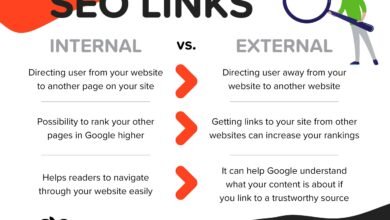
- Navigation Links: These are for wayfinding (Header, Footer, Sidebar). They help users understand where they are. Keep these static and consistent.
- Contextual Links: These are in the body of your text. They help users explore what is related.
Do: Use contextual links to guide users to the next logical step (e.g., from a blog post to a case study).
Don’t: overload a single paragraph with 10 links. It looks like spam and ruins the reading experience. If a paragraph looks like a directory, I trim it.
Keeping important pages close: managing crawl depth and “dead-end” pages
Crawl depth refers to how many clicks it takes to get to a page from the homepage. A page at depth 10 is essentially invisible. I try to keep all priority content within a depth of 3 or 4.
I check this by filtering my crawl export for “Depth > 4.” If I see a valuable page there, I look for a way to link to it from a higher-level category page or add it to a “Related Articles” module on a popular post. Avoid dead ends—every page should link to somewhere else, keeping the user on the journey.
Technical + accessibility checks I include in every internal link audit

I treat accessibility as navigation you can trust under stress. If a link works for a screen reader or keyboard-only user, it’s almost certainly going to work perfectly for Googlebot. Accessibility-focused internal linking improvements can yield ~15% lift in rankings because they usually correlate with better user engagement metrics.
Accessibility-friendly linking: descriptive anchors, focus states, and assistive tech
When I audit for accessibility, I look for links that only make sense visually. For example, a button that just says “>” or “Click Here.” A screen reader user tab-navigating through the site hears “Link… Link… Link.” It’s useless.
The Fix: Ensure every link has descriptive text (or an ARIA label). Also, check the “focus state.” When you tab through a menu, does a box appear around the selected link? If not, keyboard users (and many bots) can’t verify where they are.
Crawl efficiency basics: clean templates, fewer hops, and crawlable link formats
I look for patterns that waste resources. Common culprits include:
- Faceted Navigation: E-commerce filters generating millions of URLs (e.g., ?color=blue&size=small). I ensure these are blocked or canonicalized so crawl budget isn’t wasted.
- Redirect Hops: Links that go 301 -> 301 -> 200. I flatten these chains to point directly to the 200 status page.
- Clean Templates: Sometimes a sidebar widget generates a broken link on every page of the site. Fixing the template fixes 10,000 errors at once.
Tools I use for an internal link audit (and what each tool is best at)

You don’t need the most expensive enterprise software to do a good audit, but you do need the right mix of discovery and analysis.
| Tool | What it Answers | Best For | Limitations |
|---|---|---|---|
| Screaming Frog | Detailed crawl data, status codes, depth. | Deep technical audits. | Can be overwhelming for beginners. |
| Google Search Console | What Google actually sees/indexes. | Finding real-world broken links. | Doesn’t show full site structure well. |
| Kalema (AI SEO tool) | Content creation & link suggestions. | Scaling content with built-in structure. | Requires human review for strategy. |
| WAVE / axe | Accessibility errors. | Checking ADA compliance. | Page-by-page check (mostly). |
While tools like Screaming Frog are industry standards, newer platforms are changing the game. Using an SEO content generator can help automate the creation of topic clusters, suggesting relevant internal links as you write. This reduces the manual load significantly, potentially automating up to 50% of the semantic clustering work.
My minimum viable stack (if you’re doing this for the first time)
If you are on a budget, start here:
- Screaming Frog (Free version): Crawls up to 500 URLs.
- Google Search Console: Free data on indexing issues.
- Google Sheets: To organize your triage list.
- WAVE Extension: For spot-checking accessibility.
- Brainpower: To decide what actually matters to your users.
Common internal link audit mistakes (and how I fix them)

I’ve made plenty of mistakes in my career. Here are the ones I see most often so you can avoid them:
Mistake 1–8: quick fixes I apply immediately
- Linking only to the homepage: This hoards authority. Fix: Link deep to specific articles or products.
- Using the same anchor text every time: Looks like spam. Fix: Vary anchors (e.g., “SEO audit,” “audit your links,” “link analysis”).
- Ignoring Orphan Pages: Leaving great content to die. Fix: Commit to finding one parent page for every orphan.
- Relying on JS-only Menus: Hiding nav from crawlers. Fix: Ask devs for static HTML fallbacks.
- Too Many Links: Turning content into a Wikipedia page. Fix: Stick to 3–5 high-value contextual links per post.
- Linking to Redirects: Wasting load time. Fix: Update internal links to the final URL.
- Burying Conversion Pages: Making users dig for the “Buy” button. Fix: Move key pages to depth 1 or 2.
- Inaccessible Links: Using color alone to denote links. Fix: Always use underlines or distinct styles + descriptive text.
FAQs + my next steps checklist (so you can run your audit this month)

How often should I audit internal links?
I recommend a full crawl quarterly. If you are a high-volume publisher (news, large ecommerce) or if you just went through a site redesign, you should check for broken links monthly. The faster content changes, the faster links break.
What tools are recommended for internal link audits?
I use Screaming Frog for the heavy lifting and data gathering. I verify priorities using Google Search Console (to see what is actually getting traffic). For accessibility, I use the WAVE browser extension. Spreadsheets are the glue that holds it all together.
How many internal links should a page have?
There is no magic number, but for contextual links (inside the body copy), I aim for 3–5 relevant links per 1,000 words. Navigation and footer links don’t count toward this limit. If it feels like a directory, I trim it back.
How do I fix orphaned pages?
First, ask if the page is valuable. If yes, find a relevant “parent” category or a high-traffic related article and add a link to the orphan. If the page is old and useless, delete or redirect it. Don’t link to junk just to save it.
Does anchor text still matter?
Yes, absolutely. It helps search engines understand the topic of the destination page. Just keep it natural. Instead of “best shoes” 50 times, use “our running shoe collection,” “top-rated sneakers,” and brand names.
Should I worry about accessibility in internal linking?
Yes. Accessible sites are easier to use and easier to crawl. Simple things like using descriptive text (“View our services” vs “Click here”) and ensuring keyboard navigation works will future-proof your site against usability penalties.
Recap + next actions
To wrap this up:
- Internal link audits are about connection, not just error fixing.
- Prioritize fixes that impact navigation and money pages first.
- Build a structure (clusters) that helps AI and users understand your expertise.
Your Action Plan for This Week:
- Run a crawl (Time: 30 mins) – Export your URL list.
- Fix the top 20 broken links (Time: 60 mins) – Focus on the header/footer and top traffic pages.
- Rescue 5 orphan pages (Time: 30 mins) – Link them from relevant hubs.
- Validate – Resubmit your sitemap to GSC.
If I were starting today, I’d schedule the crawl for Tuesday morning and aim to have the major navigation errors fixed by Friday afternoon. It’s not about perfection; it’s about making the path clear for your users.