The Microsoft Copilot toolkit: Best apps to optimize your site for Microsoft AI
I used to lose entire Friday afternoons rewriting product pages and chasing stakeholders for simple approvals. You know the drill: the copy is technically accurate but reads like a manual, or the SEO tags are missing because “we just needed to get it live.”
That friction is exactly why I started looking into the Microsoft Copilot toolkit—not to replace my job, but to handle the heavy lifting of structure, drafting, and data checking. But here is the reality: “Copilot” isn’t just one button. It is a sprawling ecosystem of apps and features that can be overwhelming if you don’t know which ones actually move the needle for website optimization.
This guide isn’t a sales pitch. It is a field report on using Microsoft’s AI tools—specifically Power Pages, Dynamics 365 Commerce, and Copilot Studio—to build and optimize sites faster without sacrificing quality or compliance. I will walk you through the apps I use, the workflow that keeps them safe, and the governance guardrails that prevent AI chaos.
Search intent + what you’ll get from this guide
If you are looking for a magic button that does SEO for you while you sleep, this isn’t it. This is a practical toolkit for business teams who need to ship faster. Here is what I will cover:
- A toolkit map: Which Copilot app does what (Power Pages vs. Commerce vs. Agents).
- My personal workflow: A 6-step process to go from “blank screen” to “published page.”
- Templates you can copy: Briefs, prompts, and a “Definition of Done” checklist I use daily.
What I mean by the “Microsoft Copilot toolkit” (and what it can realistically do for a business site)

When I talk about the “Microsoft Copilot toolkit” for websites, I am not talking about the generic chat window in your browser. I am referring to a specific set of enterprise-grade features embedded in the Microsoft stack that help us build, rewrite, and operationalize web content.
Realistically, these tools can cut your “time-to-first-draft” by 50-70%. They are excellent at generating site structures, enforcing tone consistency across thousands of product pages, and surfacing internal knowledge via agents. However, they are terrible at strategy. They do not know your Q4 goals or the nuances of a sensitive legal disclaimer unless you explicitly train them.
Here are the three specific pillars of the toolkit we are focusing on:
- Copilot for site creation (Power Pages): For generating site structures, layouts, and initial HTML content from natural language. (Note: generally available in most regions, excluding DoD environments as of late 2024.)
- Copilot in Dynamics 365 Commerce: For enriching product detail pages (PDPs) with SEO-friendly copy and marketing text.
- Microsoft 365 Copilot Studio: For building custom agents that automate backend SEO ops, utilizing features like Copilot Tuning and orchestration.
Toolkit map: the 4 capabilities I actually use for site optimization
If you strip away the marketing jargon, here is what I actually use these tools for in a weekly workflow:
- Site Scaffolding: Generating the skeleton of a new microsite or landing page hub (Power Pages).
Watch-out: The design is a starting point, not a final product. - Content Enrichment: Turning dry manufacturer specs into benefit-led product descriptions (Dynamics 365 Commerce).
Watch-out: Always verify dimensions and technical specs. - Ops Automation: Using agents to check drafts against brand guidelines or suggest internal links (Copilot Studio).
Watch-out: Agents need clear instructions or they drift. - Model Selection: Choosing between OpenAI and Anthropic models depending on the task’s complexity (Frontier program).
Watch-out: Availability depends heavily on your specific tenant and licensing.
Quick reality check: what Copilot won’t do for you (without process)
I have seen teams assume Copilot replaces their SEO analyst. That is a mistake. Copilot will not conduct original keyword research or understand the search intent behind a query—it only optimizes for the keywords you feed it. It also won’t sign off on legal compliance. If you publish AI-generated financial advice without human review, you are inviting liability. You need a human in the loop.
My step-by-step workflow to optimize a site using Copilot (without breaking SEO)

The biggest risk with AI is speed—you can create bad content faster than ever before. To counter that, I use a rigid workflow. It allows me to leverage the speed of Copilot while keeping the quality high.
While third-party tools like Kalema’s SEO content generator are fantastic for scaling detailed briefs and outlines outside the Microsoft ecosystem, this workflow focuses on how to execute within your Microsoft tenant.
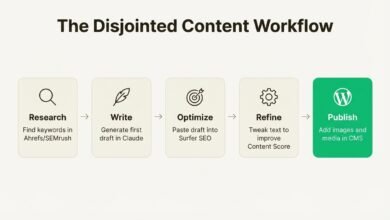
The Toolkit Workflow Map
| Step | Copilot Tool / Feature | Inputs (What I give it) | Output (What I get) | SEO Check Required |
|---|---|---|---|---|
| 1. Baseline | Search Console / Analytics | Current URL | Performance data | Identify intent gaps |
| 2. Briefing | Word / OneNote Copilot | Raw notes + Template | Structured Content Brief | Check constraints |
| 3. Drafting | Power Pages / Commerce | Brief + Keywords | Page Draft + Meta tags | Intent match |
| 4. Technical | Copilot Studio Agent | Draft URL | Schema suggestions | Validator test |
| 5. Approval | Human Review | Final Draft | “Green Light” | Compliance scan |
Step 1: Establish your baseline (crawl + analytics + index coverage)
Before I let AI touch a page, I need to know where it stands. I check Google Search Console for impressions and click-through rates (CTR). Is the page indexed? Does it have crawl errors? If a page is already ranking well, I am very careful about how much I change. Good inputs for Copilot require a clear goal: “Maintain ranking for keyword X, but improve click-through rate.”
Field note: I once let an automated process rewrite titles for a batch of high-performing pages. Traffic dropped 15% because we lost the specific phrasing users were searching for. Check your baseline first.
Step 2: Create a page brief Copilot can follow (intent, audience, constraints)
Garbage in, garbage out. If you ask Copilot to “write a product page,” you will get fluff. I use a specific brief template to constrain the AI.
Copy/Paste Brief Template:
Page Type: [e.g., Product Detail Page]
Primary Keyword: [Keyword]
Target Audience: [e.g., IT Managers in mid-sized US firms]
User Intent: [e.g., Compare specs and buy]
Key Selling Points: [List 3 specific features]
Constraints:
– No passive voice.
– Do not invent pricing.
– Must include internal link to: [Related Product URL]
– Tone: Professional, helpful, concise.
Step 3: Generate draft copy + on-page elements (titles, H1/H2s, meta, alt text)
Whether I am in Power Pages or Dynamics 365 Commerce, I use the brief to generate the content. I explicitly ask for structured data to make reviewing easier.
Prompt I use:
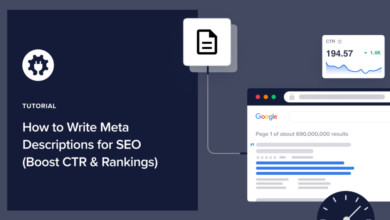
“Using the attached brief, draft the following on-page elements. Return the output as a table: 1) H1 Tag, 2) Meta Title (under 60 chars), 3) Meta Description (under 155 chars), 4) Image Alt Text suggestions for the main product image. Ensure the Meta Title includes the primary keyword.”
Field note: I always rewrite the Meta Description manually after the first draft. AI tends to be too generic. I add a local proof point or a specific number to increase clicks.
Step 4: Add schema + internal links where they naturally belong
Copilot can suggest schema types, but you need to place them. For product pages, I use Product schema. For informational guides, FAQ or Article schema is essential. I treat schema like labeling a file folder—it helps search engines categorize your content.
For internal links, I ask Copilot: “Identify 3 opportunities in this text to link to our support guide on [Topic].” But I verify them manually. I never want links that feel forced or spammy.
Step 5: Review + publish with approvals (the “two-person rule”)
This is my non-negotiable governance rule: The Two-Person Rule.
- Person A (Creator/AI): Generates the draft and SEO tags.
- Person B (Reviewer): Verifies facts, pricing, legal claims, and brand voice.
If you are in a regulated industry, you might need a legal review step. Approvals aren’t just bureaucracy; they protect your brand’s authority. One hallucinated safety spec can ruin trust forever.
Step 6: Measure impact and iterate (what I track in the first 30 days)
I don’t just hit publish and walk away. I track the page for 30 days. I look at:
- Impressions: Did the new keywords work?
- CTR: Is the new title tag appealing?
- Add-to-Cart / Conversion: Did the copy persuasive?
Field note: I annotate the publish date in Google Analytics. If I see a spike or a drop, I don’t have to guess if it was my content update or a seasonal trend.
Best apps in the Microsoft Copilot toolkit for website optimization (and what each one is best at)

It can be confusing to know which tool to pick up. Here is how I break it down based on what I need to build.
| Tool | Best For | Ideal Page Types | Setup Effort |
|---|---|---|---|
| Power Pages Copilot | Building new sites fast | Landing pages, Microsites | Low (WYSIWYG) |
| Dynamics 365 Commerce | Merchandising & Sales | Product Detail Pages (PDPs) | Medium (Integrated) |
| Copilot Studio | Automating workflows | Chatbots, Backend Ops | Medium/High (Agents) |
While these tools handle the execution, sometimes you need heavy-duty help with the initial creation. I often use Kalema’s AI article writer as a complementary tool to generate long-form, researched drafts that I then port into my Microsoft workflow for final polish and publishing.
Power Pages: Copilot for site creation (fast site scaffolding)
This is my go-to for “we need a campaign landing page by tomorrow.” You can describe the site you want—”Create a FAQ site for our new summer warranty program”—and Copilot in Power Pages generates the site structure, navigation, and starter layouts.
It creates the HTML and CSS, which you can then refine in a visual studio. It is generally available in most regions (except DoD). It saves me about 8 hours of setup time per project, getting me straight to the editing phase.
Dynamics 365 Commerce: Copilot-enriched product detail pages (PDPs)
If you manage an e-commerce catalog with 5,000 SKUs, writing unique copy for each is a nightmare. Copilot in Dynamics 365 Commerce (GA globally as of March 2024) solves this. It lets you select a tone (e.g., “Adventurous” or “Luxury”) and an audience, and then rewrites manufacturer descriptions to match.
The killer feature here is the content filter. You can set prohibited terms so the AI doesn’t make promises your legal team hasn’t approved. I recently used this to turn a list of technical specifications into a paragraph about “weekend durability” for an outdoor retailer.
Microsoft 365 Copilot Studio: agents that keep your SEO ops moving
This is the most powerful part of the toolkit for operations. Copilot Studio allows you to build “agents”—custom AI assistants. With over 230,000 organizations using it, it is becoming a standard.
You can use Copilot Tuning to train an agent on your specific SEO guidelines. I built a simple agent that takes a draft URL and checks it against our style guide, returning a “Pass/Fail” status. With App Builder (running on GPT-5 in the US) and multi-agent orchestration, you can even have one agent write the draft and another agent review it for compliance.
Companion essentials (not Copilot): what I still use for SEO validation
I never publish without checking the basics. I still use Google Search Console for performance data and a distinct accessibility checker. Copilot is great at creation, but dedicated tools are still best for validation. Think of them as the spell-check for your SEO strategy.
Choosing the right model in Copilot: OpenAI vs Anthropic (and when it matters)

Microsoft has opened up the ecosystem. Through the Frontier program, we aren’t just limited to OpenAI models anymore. We can now access models like Anthropic’s Claude Sonnet 4 or Opus 4.1 in certain environments.
Why does this matter? Different models have different “personalities.”
- OpenAI Models (GPT-4o/GPT-5): Excellent at reasoning, structured data, and following complex instruction sets. I use these for schema generation and technical briefs.
- Anthropic (Claude): Often feels more “human” and nuanced in creative writing. I prefer testing these for long-form blog content or tone-sensitive brand messaging.
A simple decision framework (task → risk → verification)
I don’t guess which model to use; I look at the risk.
- Low Risk (Outlines, meta tags): Use the fastest model available. Automation can be high.
- High Risk (Pricing, medical claims, legal): Use the most capable model (like GPT-4o or Claude Opus), and require 100% human verification.
What to know about Frontier / availability constraints
Time-sensitive note: Availability for these models varies wildly by tenant, region, and licensing. Features like App Builder on GPT-5 are currently US-only and English-only. If you don’t see the option in your dashboard, it’s likely a licensing or rollout issue, not user error. Always check the official Microsoft documentation for your specific tenant.
Governance, compliance, and quality control for Copilot-generated site content

Speed is dangerous without brakes. Governance is your braking system. If you want to scale content production using tools like Kalema’s automated blog generator or Microsoft’s own agents, you need a system that ensures quality effectively.
My “Definition of Done” checklist for AI-assisted pages
I don’t mark a ticket as “Done” until it passes this list:
- Fact Check: Are all numbers, dates, and prices verified against source documents?
- Intent Match: Does the H1 and intro directly answer the user’s primary question?
- Links: Are there 2-3 internal links to relevant pages? (And do they work?)
- Metadata: Is the meta description unique and under 155 characters?
- Accessibility: Do all images have descriptive alt text?
- Human Sign-off: Has a human subject matter expert reviewed the final render?
Content filters and approvals: how to keep speed without losing control
I recommend a RACI matrix for AI content. Responsible: The Content Lead (generates the draft). Accountable: The Head of Marketing (owns the performance). Consulted: Legal/Product (verifies claims). Informed: Sales team.
In Dynamics 365 Commerce, use the built-in content filters to automatically flag prohibited words (like “guaranteed” or “risk-free”) before a human even sees the draft.
Common mistakes I see with the Microsoft Copilot toolkit (and how I fix them)

I have made plenty of mistakes so you don’t have to. Here are the big ones.
Mistake 1: Using Copilot without a brief (results: generic copy)
What happens: You get sentences like “Unlock the power of innovation with our cutting-edge solution.” It sounds nice but means nothing.
The Fix: Never prompt without constraints. Use the brief template I shared above. Feed Copilot the 3 specific facts it must include.
Mistake 2: Publishing SEO elements last (titles/meta don’t match the page)
What happens: You write the page, then auto-generate the title tag as an afterthought. The title ends up promising something the page doesn’t deliver, tanking your CTR.
The Fix: Write the title and H1 first. Use them as the anchor for the rest of the draft. It keeps the content focused.
Mistake 3: Letting AI invent product specs or compliance claims
What happens: Copilot fills in a missing warranty gap with “5-year warranty” because that sounds plausible. It is actually 2 years. You now have a legal problem.
The Fix: Lock down spec fields. Provide the specs as “Required Facts” in the prompt. Treat AI as a copywriter, not a fact-checker.
Mistake 4: Automating internal links without relevance (creates spammy UX)
What happens: You get five links to the “Contact Us” page in one paragraph.
The Fix: Set a rule: “Max 1 internal link per 150 words.” And always verify the anchor text is descriptive (e.g., “read our sizing guide” instead of “click here”).
Mistake 5: Treating agents like “set-and-forget” automations
What happens: You build an agent to scrape pricing data, but the website UI changes. The agent breaks or scrapes the wrong number.
The Fix: Capabilities like “computer use” (UI automation) are powerful but fragile. Run a test case weekly. Monitor the agent’s logs.
FAQs + wrap-up: what I’d do next if I were starting today

FAQ: What is Copilot for site creation and how does it help optimize websites?
It is a feature within Power Pages that lets you use natural language to generate site structures, page layouts, and starter copy. It helps optimize websites by drastically reducing the time spent on scaffolding, allowing you to focus on refining content and UX. It is best for getting a Version 1.0 live quickly.
FAQ: How does Copilot improve product pages in Dynamics 365 Commerce?
It acts as a smart merchandiser. It takes raw product data and rewrites it into marketing-ready copy that aligns with your brand tone and targeted audience segments. It ensures consistency across thousands of SKUs, which is a massive win for SEO relevance.
FAQ: What is Microsoft 365 Copilot Studio and what new tooling does it include?
Copilot Studio is where you build custom agents. Recent updates include Copilot Tuning (to train it on your data), App Builder (using GPT-5 to sketch apps), and multi-agent orchestration. It is the “brain” you can customize to handle your specific business logic.
FAQ: Can I choose which AI model Copilot uses?
Increasingly, yes. Through programs like Frontier, you can access models like Anthropic’s Claude Sonnet 4 or Opus 4.1 alongside OpenAI’s models. This availability varies by tenant, but it gives you the flexibility to choose the right engine for the task.
FAQ: What is the ‘computer use’ capability in Copilot Studio?
This is a capability where AI agents can interact with user interfaces (clicking, typing) just like a human, which is useful for legacy apps that don’t have APIs. It is powerful for automation but requires careful monitoring as UI changes can break the workflow.
3-bullet recap + my recommended next actions (this week)
To wrap this up, here is what you need to remember:
- The toolkit is modular: Use Power Pages for building, Commerce for selling, and Studio for automating.
- The workflow is key: Never skip the brief, and always use the “two-person rule” for approvals.
- Governance saves you: Use checklists and content filters to prevent hallucinations and compliance risks.
Your Next Actions:
- Pick one page type: Don’t try to fix the whole site. Choose “Product Detail Pages” or “Blog Posts.”
- Create one brief template: Copy the one from this article and save it in OneNote or Word.
- Run a pilot: Use Copilot to draft 5 pages using that brief. Measure how much time it saved you versus your old process.
- Check your settings: Go into your Microsoft tenant and see which models and features (like Frontier or App Builder) are active for you.
If I were starting today, I wouldn’t aim for perfection. I would aim for a safe, repeatable process. Start small, verify everything, and then scale.