Introduction: A practical WordPress health check for SEO (and who this is for)

There is a specific kind of panic that sets in when you see your traffic line in Google Analytics start to droop, even though you haven’t changed your content strategy. I’ve been there. My first instinct used to be to churn out more articles. But often, the problem wasn’t what I was writing; it was the slow accumulation of technical debt under the hood of my WordPress site.
WordPress is brilliant, but it’s messy. Over a year or two, we all accumulate “bloat”—plugins we tested and forgot to delete, heavy theme settings we turned on for a specific landing page, and old redirects that chain together like spaghetti. In the current SEO landscape, where speed and user experience are tied directly to rankings, this invisible friction kills performance.
This guide isn’t a theoretical textbook. It is the exact step-by-step WordPress SEO audit workflow I use to diagnose health issues. I designed this for business owners and marketing teams who need to strip away the noise, fix the actual bottlenecks, and get back to ranking—without needing a computer science degree. We can usually knock this out in an afternoon.
What a WordPress SEO audit covers in 2025–2026 (and why it’s not just “install an SEO plugin”)

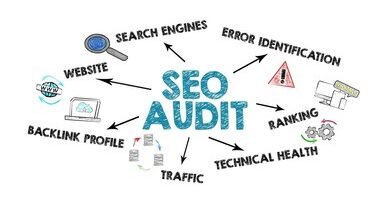
A true audit is a structured review of your site’s performance, crawlability, and security hygiene. It is not just looking for green lights on an SEO plugin.
In 2025 and moving into 2026, the game has shifted. Search engines are less reliant on raw keyword volume and far more focused on clarity, credibility (E-E-A-T), and structured data. With the rise of AI-driven search and answer engines, technical precision matters more than ever. If Google’s bots (or AI crawlers) have to wade through 50 unnecessary JavaScript files to read your content, they might just skip it.
Here is how I categorize the audit to keep it manageable:
| Audit Area | What Often Goes Wrong | The Quick Win Fix |
|---|---|---|
| Plugins & Performance | Bloat slows down Core Web Vitals (CWV). | Identify and replace heavy plugins with lightweight alternatives. |
| Theme & Architecture | Heavy page builders create layout shifts. | Switch to block-based themes or optimize asset loading. |
| Crawl & Indexing | Orphaned pages or accidental "noindex" tags. | Fix internal linking and validate sitemaps in GSC. |
| Security & Hygiene | Malware or outdated code hurts trust. | Run a security scan and update/remove abandoned tools. |
Note: Some recovery statistics suggest that comprehensive technical audits can improve traffic by 40–50% post-update, though results always vary based on your specific baseline .
When I run this audit, I prioritize anything that blocks crawling first. If Google can’t see it, nothing else matters.
Quick glossary (beginner definitions I’ll use)

- Core Web Vitals (CWV): Google’s metrics for user experience—loading speed, interactivity, and visual stability.
- Schema Markup: Code that helps search engines understand what your content is (e.g., “this is a recipe,” “this is a review”).
- Crawl vs. Index: Crawling is Google reading your page; indexing is Google filing it away to show in search results.
- Plugin Bloat: When plugins add unnecessary code (CSS/JS) to pages where they aren’t used, slowing down the site.
- Orphaned Page: A page that has no internal links pointing to it, making it hard for users and bots to find.
- FSE (Full Site Editing): The modern WordPress way of building themes using blocks instead of code files.
My WordPress SEO audit workflow: prep, tools, and a repeatable checklist

I like to treat an audit like a flight pre-check. It needs to be routine, logical, and documented. If you just start clicking around randomly, you will miss things, or worse, break something without knowing how to revert it.
Here is the order I run this in:
- Measure (30 mins): I gather data from Google Search Console and speed tools to see where the fire is.
- Identify Bloat (45 mins): I use query tools to see which plugins are hogging resources.
- Fix & Prune (1-2 hours): I remove hazards, update settings, and clean up the database.
- Validate (Ongoing): I confirm the fixes actually worked.
For tools, I keep it simple. You likely already have Google Search Console (GSC). I also use PageSpeed Insights for a lab check. But my secret weapon for WordPress specifically is Query Monitor. It’s a free plugin that tells you exactly which other plugins are slowing down your site. Once you have a clean bill of health, maintaining it becomes much easier.
Speaking of maintenance, consistency is the other half of SEO. Once the technical side is clean, you need to keep the content fresh. Many teams I work with use an Automated blog generator to keep their publishing cadence steady while they focus their human energy on these technical deep dives and strategy.
The Stop/Continue Rule: As we go through plugins, if you find one that hasn’t been updated in over a year or has no active support, that is an immediate “Stop.” It’s a removal candidate unless it is absolutely mission-critical.
Before I change anything: backups, staging, and baselines
I have broken sites before. I once updated a permalink structure on a Friday afternoon and spent the weekend manually mapping 301 redirects because I didn’t have a backup. Don’t be me.
Before you touch a single setting:
- Run a full backup: Use your host’s backup tool or a plugin like UpdraftPlus.
- Use Staging if possible: Most decent hosts (WP Engine, SiteGround, Kinsta) offer a one-click staging site. Test your changes there first.
- Capture Baselines: Screenshot your current PageSpeed score, note your top 5 keyword rankings, and export your plugin list. This is your “control” group.
Tools I use (free-first) and what each one tells me
If you only install one extra tool for this audit, make it Query Monitor. Here is my toolkit:
- Google Search Console (GSC): Tells me if Google is angry. I look at the “Pages” report for indexing errors.
- PageSpeed Insights: Tells me how real users experience the speed (Core Web Vitals).
- Query Monitor: Tells me why the site is slow. It reveals heavy database queries and scripts loaded by plugins.
- Wordfence (or similar): Tells me if the site is infected or vulnerable.
Plugin audit: remove bloat, reduce conflicts, and keep what actually helps SEO

Plugin bloat is the cholesterol of WordPress. It builds up silently until the heart—your server—can’t pump data fast enough. I’m not anti-plugin; I’m pro-purpose. If a plugin does one specific job well and doesn’t load assets globally, it stays.
I recently audited a site that had three different social sharing plugins active. Three! They were all injecting scripts on every page load. We removed two, kept the lightest one, and the mobile score jumped 12 points overnight.
Here is my framework for auditing plugins:
| Plugin Type | Common SEO Risk | How I Test Impact | Action |
|---|---|---|---|
| Sliders / Carousels | Huge JS files, massive Layout Shift (CLS). | Run PageSpeed Insights with/without it active. | Replace with a lightweight CSS block or static image. |
| Social Sharing | External script calls slow down rendering. | Check “Third-party code” in PageSpeed Insights. | Keep only if essential; use lightweight options like Shared Counts. |
| Analytics | Double-tracking codes. | Check source code for multiple GA4 tags. | Consolidate into one GTM container or plugin. |
| Backup / Migration | Server load during peak times. | Check CPU usage logs. | Deactivate when not in use (for migration tools). |
Red flags: inactive plugins, abandoned plugins, and “one-feature” micro-plugins
There is a misconception that inactive plugins don’t hurt you. While they don’t load scripts on the front end, they are a security risk. Hackers love old, unpatched code sitting on your server.
I also look for “micro-plugins”—those tiny plugins installed to do one thing, like “Hide Title” or “Insert Headers and Footers.” Often, you can replace these with a simple code snippet in your theme or a custom MU-plugin. However, a safety warning: If you don’t know what the snippet does, don’t ship it to production. Pasting bad code into `functions.php` is the fastest way to get the White Screen of Death.
SEO plugin sanity check (Yoast vs Rank Math): when migrating makes sense
People often ask me if they should switch from Yoast to Rank Math. Rank Math has gained massive popularity because its free version includes features others charge for, like redirect managers and basic schema controls.
I migrate when the operational benefits outweigh the risk. If a client is paying for three separate add-ons that Rank Math handles for free, we switch. The migration wizards are generally good, but I have a rule: Don’t migrate if you have complex, custom-coded schema or a massive multi-language setup without testing on staging first.
If you do switch, monitor your “sitemaps” report in GSC for 2–3 months to ensure Google picks up the new structure.
Theme audit: how I choose an SEO-friendly WordPress theme (speed, semantics, mobile)

Your theme is the skeleton of your site. If the skeleton is brittle, no amount of plugin vitamins will make the site strong. An SEO-friendly theme today means clean code, semantic HTML5 (so robots know what is a header and what is a footer), and accessibility.
I tend to stick to a few proven winners: GeneratePress, Astra, and Kadence. They are built for performance. Conversely, I am very wary of themes found on marketplaces that bundle in visual builders like WPBakery or massive Revolution Sliders by default. Those are often performance nightmares.
Here is my quick theme decision matrix:
| Theme Option | Strengths | Watch-outs | Best Fit For |
|---|---|---|---|
| GeneratePress | Insanely lightweight, stable, developer-friendly. | Can look “plain” out of the box; needs styling. | Performance-focused blogs & business sites. |
| Astra | Huge library of starter templates, very fast. | Free version is limited on blog layouts. | Agencies building many client sites quickly. |
| Heavy "All-in-One" Themes | Looks pretty immediately with zero effort. | Code bloat, slow load times, hard to switch later. | Ideally? No one focused on SEO. |
Block themes, FSE, and Gutenberg: what matters for SEO (beginner view)
You’ll hear terms like “FSE” (Full Site Editing) or “Block Themes.” Think of this as the modern blueprint for WordPress. Instead of loading heavy pre-made layouts, block themes just load the code for the blocks you actually use on the page.
From an SEO perspective, this architecture is cleaner. It usually results in less unused CSS and a faster DOM (Document Object Model) size, which helps with Core Web Vitals. You don’t need to be a developer to benefit from this—just choosing a modern block-enabled theme gets you halfway there.
Settings-level SEO checks inside WordPress: the high-impact fixes most beginners miss

This is where the actual work happens. These settings seem small, but they control how search engines interact with your site. I check these manually on every audit.
Indexing and crawl checks: visibility settings, noindex tags, and sitemap validation
The most terrifying setting in WordPress is under Settings > Reading: “Discourage search engines from indexing this site.”
I have seen businesses lose 90% of their traffic because a developer left this checked after moving a site from staging to live. It is the first thing I check.
My Confidence Check:
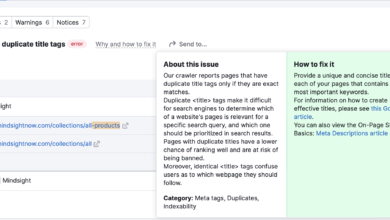
I open a browser and type `site:mydomain.com`. If nothing shows up, or very few pages show up, I know I have an indexing blocker. I also log into Search Console and check the Indexing / Pages report. If I see a spike in “Excluded by ‘noindex’ tag,” I investigate immediately.
Internal linking and site structure: preventing orphan pages (simple approach)
Orphan pages are lonely content pieces that have no links pointing to them. If you don’t link to them, Google assumes they aren’t important.
I do a “sanity check” for site structure:
1. I identify the top 5 “money pages” (services or key conversions).
2. I walk through the site like a customer. Can I get to those pages from the Homepage in 1 or 2 clicks?
3. If not, I add them to the main navigation or footer.
4. I check post-to-post links. I aim for every blog post to link to at least one money page.
Images and media: filenames, alt text, and performance trade-offs
Image SEO is often over-complicated. For me, it comes down to three things: context, access, and speed.
- Filenames: `IMG_5920.jpg` tells Google nothing. `wordpress-seo-audit-checklist.jpg` tells Google exactly what it is. I rename images before uploading.
- Alt Text: This is for accessibility first, SEO second. Bad: “keyword keyword keyword.” Good: “A screenshot of the Google Search Console performance graph showing a traffic drop.”
- Compression: I use a plugin (like ShortPixel or Imagify) to squash images automatically. I rarely trust myself to Photoshop-optimize every single file perfectly.
Security + AI-era visibility: the modern WordPress health check that protects rankings

In 2025, security is SEO. If your site serves malware to a visitor, Chrome will block it with a giant red warning screen. That is an immediate bounce rate of 100% and a trust killer.
But beyond just defense, we need to think about AI-era visibility. Tools like ChatGPT and Google’s AI Overviews rely on structured, credible data. They need to know who wrote the content and that the site is secure.
When we talk about scaling content while maintaining this high level of technical credibility, using an AI article generator can help produce structured drafts that already have the right formatting hooks, but a human must always verify the output. Similarly, when I’m running a recovery audit after a core update, I often use an SEO content generator to help refresh outdated content quickly, but the technical security audit sits underneath all of that.
Security essentials that double as SEO protection
Here is my non-negotiable security checklist for SEO:
- Malware Scan: I run a scan with Wordfence or BlogVault. Even hidden malware can generate thousands of spam pages that dilute your site’s authority.
- Update Hygiene: I update plugins weekly. Outdated plugins are the #1 entry point for hacks.
- User Cleanup: I delete any “Admin” accounts that shouldn’t exist.
- Limit Login Attempts: Stops bots from hammering your server and slowing it down.
Structured visibility in 2025: schema, credibility, and clarity (beginner-friendly)
To rank in an AI world, you need to be explicit. Schema markup is how we speak “robot.” It tells Google, “This text here is the author’s name,” and “This text is the aggregate rating.”
I make sure my SEO plugin is outputting Article or BlogPosting schema correctly. I also check that the “Organization” schema has the correct logo and social profiles. This feeds the Knowledge Graph. If your content is vague, AI skips it. I rewrite introductions to be answer-first: state the answer directly, then explain. Clarity wins.
Common WordPress SEO audit mistakes (and how I fix them fast)
I have made most of these mistakes, so you don’t have to.
- Changing Permalinks recklessly:
- Symptom: 404 errors everywhere. Traffic nosedives.
- Fix: Never change permalink settings on a live site without a meticulous 301 redirection plan. If you did it by accident, revert immediately or install a redirection plugin to map old URLs to new ones.
- Leaving Staging Mode on:
- Symptom: Site de-indexed.
- Fix: Uncheck “Discourage search engines” in Settings > Reading.
- Plugin Redundancy:
- Symptom: Two SEO plugins active (e.g., Yoast AND All in One SEO).
- Fix: Choose one. Having both creates conflicting meta tags and confuses crawlers.
- Ignoring “Thin” Content:
- Symptom: Thousands of low-quality Tag pages indexed.
- Fix: I set my SEO plugin to “noindex” Tags and Archives unless I have a specific strategy for them.
- Forgetting to Re-submit Sitemaps:
- Symptom: Google takes forever to find new fixes.
- Fix: After an audit, I always go to GSC and ping the sitemap URL.
FAQs + wrap-up: what to do next after your WordPress SEO audit
What plugins should I remove during a WordPress SEO audit?
Start with inactive ones. Then, look for overlap (do you really need three caching plugins?). Remove anything that hasn’t been updated in 12+ months or triggers high load in Query Monitor.
How do I choose an SEO-friendly theme?
Look for “lightweight” and “block-based.” Avoid themes that require 5+ dependent plugins to function. I recommend GeneratePress or Astra for a solid baseline.
Is migrating from Yoast to Rank Math beneficial?
It can be, especially for the free features like redirect management and local SEO. However, if your current setup is working and you aren’t tech-savvy, the risk of breaking data during migration might outweigh the benefits.
What security measures should be part of an SEO audit?
Scanning for malware, removing unused themes, and ensuring SSL is active (HTTPS). A hacked site loses rankings faster than a slow site.
How has SEO changed in 2025 for WordPress?
It is less about keywords and more about E-E-A-T and technical health. You need a fast, secure site with structured data to be visible to both Google and AI tools.
Your Next Steps
You’ve read the guide. Now, here is your Monday morning plan:
- Run a baseline test on PageSpeed Insights and save the PDF.
- Install Query Monitor and identify your top 3 slowest plugins. Replace or remove them.
- Check your Indexing in GSC to ensure no good pages are blocked.
- Schedule a monthly “Health Check” on your calendar so you never face a massive technical debt pile-up again.
A WordPress SEO audit isn’t a one-time magic trick; it’s hygiene. Keep it clean, and your content will have the foundation it needs to win.