SEO project management template for fast, clean campaigns
Introduction: Why I rely on an SEO project management template for SEO campaigns

I used to run SEO in spreadsheets. It works—until it doesn’t. My breaking point wasn’t a algorithm update; it was a simple missed handoff. We had a technical fix for a canonical tag issue that sat in a “To Do” column on a shared sheet for three weeks because two different people thought the other was handling it. Meanwhile, our writer was optimizing pages that weren’t even being indexed.
That chaos is why I moved to a proper system. SEO campaigns rarely fail because the strategy is wrong; they fail because the execution is messy. Files get lost, meta descriptions are forgotten during uploads, and stakeholders ask “what are we doing?” because they can’t decipher a raw data export.
If you are managing SEO for a business, an agency, or even a robust personal project, you need more than a list of keywords. You need an SEO project management template—a repeatable blueprint that turns strategy into shipped work. Whether you use Asana, ClickUp, or Trello, the principles are the same. This guide covers the exact structure I use to keep campaigns clean, from the first audit to the monthly report.
Search intent + what you’ll learn
This isn’t a theoretical discussion on ranking factors. This is a practical, how-to guide on operationalizing your SEO workflow. Here is what we will cover:
- Core Components: The phases, fields, and views every template needs.
- Step-by-Step Setup: A 7-step workflow to get you from “zero” to “running.”
- Tool Comparison: Honest notes on Asana, ClickUp, Flowlu, and Lark.
- Customization: Adapting for local vs. enterprise, plus planning for Generative SEO.
- Common Mistakes: How to avoid the “task graveyard.”
What an SEO project management template is (and why it beats spreadsheets)

An SEO project management template is a structured system designed to plan, assign, execute, and track SEO tasks through defined stages. Unlike a spreadsheet, which is a static record of data, a PM template is dynamic—it handles dependencies, notifies owners, and visualizes progress.
I know the temptation to stick with Excel or Google Sheets is strong. They feel flexible. But in a spreadsheet, there is no accountability. A cell doesn’t ping you when a due date passes. A row doesn’t automatically move to “QA” when a writer finishes a draft.
The impact of switching to a dedicated roadmap is measurable. Organizations using structured templates like Asana’s SEO roadmap have reported cutting their reporting time by approximately 50% . Instead of spending Friday afternoon collating updates from Slack threads and emails, the dashboard just exists, updated in real-time.
More importantly, better organization drives results. A SaaS company utilizing a roadmap template saw a reported 25% increase in organic traffic within one quarter . Why? Because they actually shipped the work. They didn’t lose time on coordination; they spent it on optimization.
What typically makes up an SEO project management template?
Regardless of the software you choose, a solid template relies on five structural pillars:
- Project Phases: Distinct stages like Audit, Strategy, Content, and Technical.
- Task Fields: Specific data points like Status, Assignee, Priority, and URL.
- Checklists: Granular steps within a task (e.g., “Check mobile usability” inside a technical audit task).
- Milestones: Major checkpoints, such as “Site Audit Complete” or “Q1 Content Calender Finalized.”
- Dashboards/Views: Visual ways to see the work, like Kanban boards or Timelines.
How templates improve SEO project outcomes
The magic of a template is that it segments workflows into logical stages. Instead of a jumbled list of “to-dos,” you move a page from Strategy to Content Creation to Optimization to Reporting. This clarity reduces rework. Writers don’t start drafting until the keyword research is approved. Developers don’t push code until the SEO team has reviewed the staging site.
It also solves the “bandwidth” excuse. When you can visualize dependencies on a timeline, you can see that your developer is blocked on three other projects, allowing you to adjust expectations before a deadline is missed, rather than apologizing after.
SEO project management template structure: phases, fields, and views that keep work moving

If you are building your own template from scratch or customizing a pre-made one, you need a blueprint. I treat my SEO template like a factory floor: raw materials (keywords/audits) come in one side, and finished products (optimized, indexed pages) go out the other.
Here is the architecture I use. You can recreate this in almost any modern project management tool.
Phase map: the SEO campaign stages I use
I organize my projects into these specific containers or “sections”:
- Discovery & Audit: Technical crawls, competitor analysis, and baseline reporting.
- Strategy & Keywords: Intent mapping, topic clustering, and brief creation.
- Content Production: Drafting, editing, and graphics.
- On-Page Optimization: Titles, metas, internal linking, and schema.
- Technical Implementation: Dev tickets, Core Web Vitals fixes, and robot.txt updates.
- Off-Page / PR: Link building outreach (optional depending on campaign).
- Reporting & Iteration: Monthly reviews and re-optimization loops.
Tip: If you are overwhelmed, start with just four phases: Plan, Create, Technical, and Report. You can get granular later.
Task fields (the minimum viable setup)
Don’t over-engineer your fields, but don’t rely on the defaults either. Standard fields usually include Task Name, Assignee, and Due Date. For SEO, you absolutely need to add custom fields. In my experience, the minimum viable setup includes Priority (High/Med/Low), Target Keyword, Target URL, and Status.
Platforms like Lark and ClickUp excel here because they allow extensive custom fields. I often add a “Stage” drop-down to track where a task sits in the lifecycle, separate from its completion status.
Views that match how SEO work actually happens
Different stakeholders need to see different things. This is where “Views” come in:
- Kanban Board: This is my daily driver. Columns represent status (To Do, In Progress, Needs Review, Done). It helps me see where bottlenecks are forming—usually in the “Needs Review” column.
- Timeline / Gantt: Essential for technical SEO and site migrations. You need to see that the staging site review must happen before the go-live date.
- List View: Good for the backlog. When I’m staring at 100 audit errors, I want a compact list, not a board.
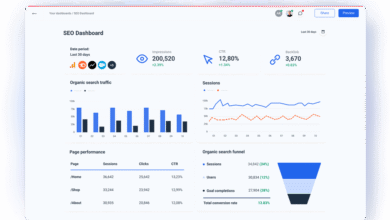
- Dashboard: For the boss or client. They just want to see “Tasks Completed vs. Tasks Planned.”
If you only pick one view, start with Kanban + a simple KPI dashboard.
Table: Core template fields
| Field Name | Why it matters | Example Value |
|---|---|---|
| Target Keyword | Keeps the primary goal visible; prevents cannibalization. | “project management software for small business” |
| Target URL | Ensures everyone knows exactly which page to edit. | /blog/best-pm-tools |
| Status | Communicates progress without a meeting. | Needs Approval, In Dev, Published |
| Difficulty / Effort | Helps with sprint planning and resource allocation. | High (Dev required), Low (Content tweak) |
| Dependencies | Prevents tasks from starting before prerequisites are done. | Blocked by: Keyword Research Task #102 |
How I set up the template: a step-by-step SEO workflow you can copy

Having a template structure is one thing; using it effectively is another. Here is exactly what I do on a Monday morning to keep the machine running. This workflow assumes you have your tool (Asana, ClickUp, etc.) ready to go.
Step 1: Define the goal and KPI (so tasks don’t turn into busywork)
Before creating a single task, I set a “Header” or “Goal” card at the top of the project. This defines what we are actually chasing. Is it organic revenue? Leads? Traffic? For example: “Goal: Increase organic qualified leads by 20% in Q3.” This acts as a filter. If a task doesn’t contribute to that goal, it gets deprioritized. It sounds simple, but it prevents the team from getting distracted by vanity metrics.
Step 2: Build your backlog from an audit (technical + content)
I start by dumping my audit findings into the backlog. But I don’t just paste “Fix 404s.” I break them down. If there are 50 broken links, that might be one task or five, depending on complexity. Each task gets an owner and a “Definition of Done.”
For example, a task isn’t just “Fix Redirects.” The description reads: “Map old URLs to relevant new destinations. Validate 301 status codes. Confirm no redirect chains exist.” This clarity prevents the “I thought I finished it” conversation later.
Step 3: Keyword + intent mapping (turn research into a page plan)
Next, I move to the Strategy phase. I create tasks for each target topic. This is where I map keywords to specific pages to ensure we aren’t cannibalizing our own rankings. I have a rule: One primary intent per page. If a topic is too broad, I break it into multiple tasks/pages.
In the task description, I list the Primary Keyword and 3-5 Secondary Keywords. This serves as the initial “spec” for the content team.
Step 4: Content briefs and production workflow (with QA checkpoints)
This is the engine room. The workflow moves from Briefing to Drafting to Editing. I use the template to enforce quality gates. A writer cannot move a task to “Review” until they have checked off the brief requirements.
To speed up the drafting phase without sacrificing structure, I often use tools to generate the initial outline or structured draft based on the keyword map. An AI article generator can help create comprehensive first drafts that cover the semantic entities required, but I always add a manual task for “Editorial Review.” We check for unique point of view, verify facts, and ensure the brand voice is consistent. Automation helps operations, but human review ensures quality.
Step 5: On-page SEO checklist inside the template
I don’t trust memory for on-page optimization. Every content task in my template includes a sub-checklist that must be ticked off before publishing:
- Title Tag: Checked for pixels width and keyword placement.
- Meta Description: Compelling CTA, under 160 chars.
- H1/H2/H3 Structure: Logical hierarchy verified.
- Internal Links: Added 3 links to relevant priority pages.
- Schema: Article or FAQ schema validated.
If these boxes aren’t checked, the task isn’t done. It’s that simple.
Step 6: Publishing and coordination (so nothing gets stuck in drafts)
The handoff from “Approved” to “Live” is where things often stall. In my workflow, moving a card to the “Publishing” column triggers a notification to the CMS manager. For teams managing high volumes of content, an Automated blog generator can streamline the actual posting process to WordPress, handling the formatting and uploads automatically. However, even with automation, I always have a “Post-Publish QA” task: check the live URL, verify indexing in GSC, and confirm the canonical tag is correct.
Step 7: Reporting cadence and iteration loop
Finally, the loop closes with reporting. I have a recurring task set for every Monday: “Weekly SEO Pulse Check.” This isn’t a deep dive; it’s a 15-minute review of the dashboard to spot fires (e.g., a sudden drop in clicks). Then, a monthly recurring task triggers a deeper analysis where we review which completed tasks correlated with traffic gains. This insight feeds right back into Step 1 for the next month.
Customizing the template for different campaign types (and planning for Generative SEO)

One size rarely fits all. A local plumber needs a different roadmap than a SaaS unicorn. The beauty of a template is its adaptability.
Make it work for your team size
If you are a solo consultant, simplify everything. You don’t need an “Approval” column if you are the one approving. Use a simple “To Do / Doing / Done” board. If you are an agency with a team of 10, you need roles. Define clearly who is the “Assignee” (the person doing the work) versus the “Watcher” (the person who needs to know it’s done). Clarity on roles prevents bottlenecks.
Table: Campaign type → what I add to the template
| Campaign Type | Must-have Phases | Extra Fields/Checklists |
|---|---|---|
| Local SEO | GBP Optimization, Citation Building | Checklist: “Verify NAP consistency,” Field: “Location” |
| Content-Led Growth | Topic Cluster Planning, Production | Field: “Funnel Stage” (ToFu/MoFu/BoFu) |
| Technical Audit Sprint | Dev Fixes, Validation | Field: “Dev Effort Points,” View: Timeline |
| Enterprise / SaaS | Stakeholder Approval, Legal Review | Checklist: “Legal Compliance Check” |
Planning for Generative SEO (GSEO) without reinventing everything
The landscape is shifting with AI overviews (SGE) and Generative SEO. I haven’t thrown out my template, but I have adapted it. I’m focusing more on content resilience and authority. I’ve added specific tasks for “Entity Verification“—ensuring our content clearly defines entities in a way machines understand.
I also include a “Source Notes” field in my briefs now. We need to cite data sources explicitly to be picked up by generative engines. If you are looking to scale this type of high-authority content, an SEO content generator can help build the initial structure, but the human task of verifying entity consistency is what will keep you resilient against algorithm shifts.
Which platform should you use for your SEO project management template?

I get asked this constantly: “Is ClickUp better than Asana?” The honest answer is: it depends on your brain and your team. The tool won’t fix a broken process, but the right one removes friction.
Decision criteria: pick based on your workflow, not the logo
When evaluating tools, I look at three things: Visualization (can I see a timeline?), Customization (can I add SEO-specific fields?), and External Access (can I share a read-only view with a client?). If you rely heavily on developers, you need a tool that handles dependencies well (like Jira or ClickUp). If you are content-heavy, a visual Kanban board (like Trello or Asana) is often superior.
Table: SEO template tool comparison
| Platform | Best For | Strengths | Limitations |
|---|---|---|---|
| Asana | Marketing & Content Teams | Intuitive UI, great templates, excellent “Portfolios” for agencies. | Can get expensive; reporting is basic on lower tiers. |
| ClickUp | Agencies & Power Users | Incredible customization, custom statuses, 15+ views. | Steep learning curve; can feel cluttered / slow. |
| Flowlu | Business Management | Combines project management with CRM and invoicing. | Less specialized for agile creative workflows. |
| Lark | Collaboration-Heavy Teams | All-in-one (chat, docs, sheets, projects); great field customization. | Newer to the market; integrations might be limited vs. Asana. |
FAQs: templates, customization, and choosing the right one
Do these platforms come with pre-made SEO templates?
Yes. Asana, ClickUp, and Flowlu all have “SEO Roadmap” or “Content Calendar” templates in their libraries. You can install them in one click and then tweak the fields.
Can I customize the templates?
Absolutely. The first thing I do is delete the default fields I don’t need and add my specific ones (like “Target URL”).
How do I choose the right one?
Start with the free versions. Import your last 10 tasks. If setting them up takes longer than doing the work, try a different tool. I usually tell beginners to start with Asana for simplicity or ClickUp if they want granular control.
Common SEO project management mistakes (and how I fix them)

I have made every mistake in the book. Here are the ones that cause projects to fail, and the specific template fix for each.
Mistake-to-fix list
- Mistake: The “Task Graveyard.” Tasks sit in “To Do” forever.
Fix: Add a “Due Date” field that is mandatory. If it doesn’t have a date, it doesn’t exist. - Mistake: Ambiguous “Done.” Dev says it’s done; SEO checks and it’s broken.
Fix: Add a “QA/Validation” checklist inside the task. The task isn’t complete until the checklist is ticked. - Mistake: Orphaned Tasks. Work that belongs to no one.
Fix: Every task must have an “Assignee.” If multiple people are involved, use subtasks or “Watchers.” - Mistake: Ignoring Dependencies. Content is written but the new site section isn’t live.
Fix: Use the “Dependency” feature. Link the content task to the dev task so the writer knows not to start yet. - Mistake: Over-Reporting. Spending hours building slides.
Fix: Use a real-time Dashboard view. Share the link with stakeholders and stop building static decks.
Wrap-up: my 3-point recap and next steps checklist
We’ve covered a lot, but operationalizing SEO really comes down to three things:
- Centralize everything: Stop using email and Slack for task management.
- Define your stages: know exactly where a task goes from “Idea” to “Live.”
- Visualise the work: Use Kanban or Timelines to spot bottlenecks before they kill your deadline.
Your next steps:
- Pick a tool today (even a free trial works).
- Create your columns: Backlog, Strategy, Content, Tech, Review, Done.
- Add your first 10 tasks from your last audit.
- Assign them to yourself with a due date.
Even a simple template beats a messy spreadsheet every time. Get the system in place, and the rankings will follow.