Introduction: a practical plan for cleaning up search results (without breaking your SEO)
It usually starts with a frantic Slack message or a forwarded support ticket: “Why is Google still showing our 2022 pricing PDF?” or “The CEO’s bio on search results lists his old company.”
I’ve been there. It’s frustrating when your live site is current, but Google’s memory—the index—is stubbornly living in the past. This isn’t just a vanity metric; outdated content hurts brand trust and creates friction for users who land on discontinued service pages or dead policies.
The solution, however, isn’t always to just “delete it.” In fact, rushing to delete pages without a plan is one of the fastest ways to tank your organic traffic. In this guide, I’ll walk you through the exact workflow I use to audit, remove, or refresh outdated content. We’ll look at when to use Google’s temporary removal tools versus when to perform a hard content prune, and how to navigate the technical shifts coming in 2026. This isn’t about magic tricks; it’s about aligning your site’s reality with what Google crawls and indexes.
How Google shows “outdated content” (and what “removal” really means)

To fix the problem, we have to understand the mechanism. I like to explain it to stakeholders using a library analogy. If you throw a book in the trash (delete a page from your server), the library’s card catalog (Google’s index) doesn’t update instantly. People can still find the card, look for the book, and end up frustrated when the shelf is empty.
When we talk about “removing” content, we are usually dealing with three different layers:
- The Live Page: The actual URL on your server. This is the only thing you fully control.
- The Index Entry: Google’s record of that page, which allows it to appear in search results.
- The Cached Snippet: The snapshot Google took the last time it crawled the page. This is often where the “outdated” text lives, even if you’ve updated the page.
If you don’t address all three, the ghost of that content lingers. And timing matters—updates rely on crawl frequency. If Google only visits your site once a month, that snippet isn’t going anywhere quickly unless you force a handshake.
Outdated vs inaccurate vs harmful: what qualifies for different Google pathways

Not all bad content is created equal, and Google treats them differently. Here is how I categorize them before taking action:
- Obsolete Information: A page that was once true but isn’t anymore. Example: A holiday hours page from two years ago or a discontinued product spec sheet.
- Inaccurate Content: Information that is factually wrong or misleading. Example: An old blog post claiming a tax law that has since been repealed.
- Sensitive Personal Information: Data that exposes individuals to risk. Example: An accidentally indexed spreadsheet with employee phone numbers or home addresses.
- Legal/Policy Violations: Content that infringes copyright or local laws. Example: A scraping site hosting your proprietary reports.
How long does it take for Google to remove outdated content?
I always tell my clients to plan for weeks, not hours. While the Search Console Removals tool can hide content from search results within a day, that removal is temporary—lasting only 180 days. It’s a band-aid, not a cure.
For permanent removal (where the result drops out of the index naturally), users report timelines ranging from 2 to 12 weeks. This variance depends entirely on your crawl budget—how often Google bots visit your site. If you have a massive site with poor internal linking, Google might not notice your noindex tag for months.
Update, delete, noindex, or redirect? My decision framework (with a comparison table)

The biggest mistake I see is SEOs treating every outdated page as a nail for the “Delete” hammer. Content often holds hidden value—backlinks, historical traffic, or topical relevance—that you destroy if you simply 404 it.
Before I touch a single URL, I run it through a logic check. If the content is outdated but the topic is still relevant to our business, I prefer to update or rewrite it. This is where modern workflows help; using a high-quality SEO content generator can help you refresh stale articles efficiently, keeping the URL equity alive while modernizing the information.
However, if the content serves no purpose and confuses users (like a “2019 Conference Agenda”), it needs to go.
A quick “keep vs kill” checklist before I touch anything
- Check Traffic: Did this page get organic traffic in the last 6 months? If yes, redirect it; don’t kill it.
- Check Backlinks: Does it have external links? If yes, 301 redirect it to a relevant equivalent to save that authority.
- Check Intent: Does the user landing here still want something we offer? If yes, update the page.
- Check Compliance: Does keeping this live create a legal risk? If yes, kill (410) immediately.
Table: Update vs Remove vs Noindex vs Redirect (which one fits?)
| Action | Best For | Pros | Cons | What I do next |
|---|---|---|---|---|
| Update | Stale but relevant topics (e.g., “Best X of 2023”) | Preserves rankings & links; boosts freshness | Requires editorial effort | Update content + Request Indexing |
| 301 Redirect | Moved content or duplicate topics with backlinks | Passes ~90-99% of link equity; keeps user flow | Can cause soft-404s if irrelevant | Update internal links to new URL |
| Noindex | Utility pages (Tags, Archives, internal admin docs) | Removes from Google but keeps accessible | Wastes crawl budget if not managed | Leave in sitemap briefly, then remove |
| Delete (404/410) | Expired job posts, harmful content, zero-value pages | Cleanest signal for removal | Loses all SEO value/history | Remove from sitemap immediately |
How to remove outdated content from Google: a step-by-step workflow I use

When I have to clean up a site, I don’t just start clicking buttons in Search Console. That’s how you accidentally de-index your homepage (I’ve seen it happen). Here is the exact order I follow so I don’t create SEO messes.
This process balances speed with safety. For large-scale cleanups, I might use an AI article generator to quickly draft updated versions of thin content that I want to keep, but human review is non-negotiable before anything goes live.
Step 1: Find what’s outdated (Search Console, analytics, site search, and SERP checks)
You can’t fix what you can’t find. I start with a simple Google Search Console (GSC) Performance report. I filter queries for years (e.g., “2022”, “2023”) to see what old terms we still rank for. I also check the Pages report for pages with declining traffic.
Pro tip: For a 5-minute quick win, perform a site search on Google: site:yourdomain.com "outdated term". If you see results, those are your targets. Screenshot them immediately—stakeholders love visual proof.
Step 2: Decide the action per URL (and document the why)
I open a spreadsheet and log every URL I found. My columns are simple: URL | Issue | Decision | Implementation | Owner.
For example, for a URL like /blog/2020-marketing-trends, my decision might be “Redirect to /blog/marketing-trends-hub” because it has backlinks. Writing this down saves you headaches later when someone asks, “Hey, where did that post go?” Future you will thank you.
Step 3: Implement the change on your site (the part Google actually follows)
This is critical: Google follows what is on your server. You must change the reality first.
- If Deleting: Configure the server to return a 410 (Gone) status code if possible; it tells Google “this is gone forever” faster than a standard 404.
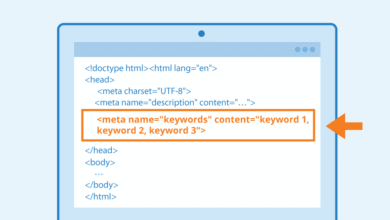
- If Noindexing: Add
<meta name="robots" content="noindex">to the<head>section. Do NOT block it in robots.txt yet, or Google won’t be able to crawl the tag and see that it should be removed. - If Redirecting: Implement a 301 redirect. Test it to ensure it doesn’t chain (A > B > C).
Step 4: Send the right signals (indexing, sitemaps, and link cleanup)
Once the site is changed, I nudge Google. I update the XML sitemap to remove the 404/410 URLs. Ironically, for noindex pages, I sometimes leave them in the sitemap for a few days to encourage Google to crawl them and process the removal directive. Finally, I use the “Inspect URL” tool in GSC for high-priority pages and click Request Indexing. This queues the bot to notice your changes sooner.
How to remove outdated content from Google using Google’s removal tools (and when each one works)

There is often confusion between the tools available. I categorize them into “Site Owner Tools” (Search Console) and “Public Tools” (Outdated Content Tool). Knowing which lever to pull is half the battle.
Search Console Removals tool: what it does (and what it does not)
If you have verified ownership of the property in Search Console, you can use the Removals tool. But here is the catch: It only hides the content for 180 days.
It does not delete the page from the index permanently. It essentially puts a digital blanket over the result. I use this when I need to buy time—for instance, if legal demands a page be hidden immediately while developers work on the physical deletion. Always remember: if the 180 days pass and the page is still live (or returns a 200 OK status), it will pop right back into the search results.
Outdated Content tool: fixing dead links and stale snippets
The Outdated Content tool is what I use for third-party sites or when I don’t have GSC access to a specific subdomain. It’s designed for two specific scenarios:
- The page no longer exists (404/410) but still shows up in search.
- The page exists, but the snippet (description) in search results contains text that is no longer on the live page.
Common frustration: Requests here are often denied. This usually happens because the live page still contains the keyword you claimed was removed, or the server is returning a “soft 404” (a customizable error page that actually sends a 200 success code). Google is literal; check your headers.
Table: Which tool should I use for outdated content vs personal info vs legal removals?
| Scenario | Tool/Method | Who Can Use |
|---|---|---|
| I own the site & need it hidden NOW | GSC Removals Tool | Verified Owner |
| Page is deleted but still shows in Search | Outdated Content Tool | Anyone |
| Snippet shows old price/text | Outdated Content Tool (Cache update) | Anyone |
| Personal phone/address exposed | “Results about you” / Remove this result | Individual affected |
| Copyright/Legal violation | Legal Removal Request (DMCA) | Rights Holder |
After removal: technical SEO steps that make changes stick (and protect rankings)
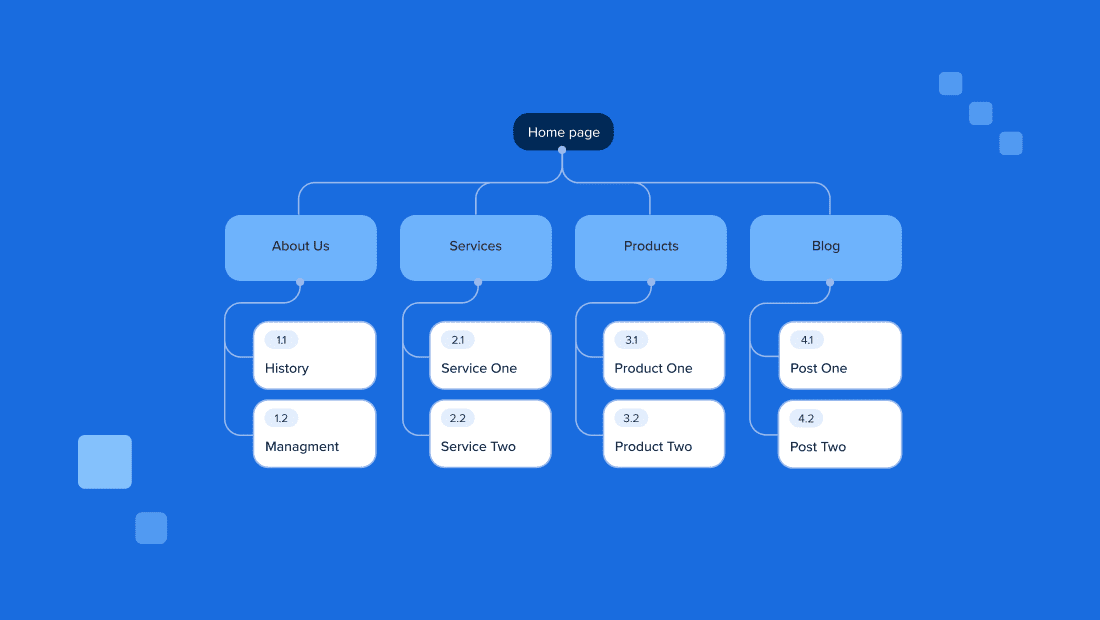
The cleanup isn’t done when the request is submitted. The aftermath is where technical SEO health is maintained. If you delete 500 pages, you create 500 holes in your site’s internal linking structure. Googlebot hates hitting dead ends—it wastes crawl budget that could be spent on your money pages.
When I’m managing a massive audit—say, refreshing hundreds of articles using a Bulk article generator workflow to ensure everything is current—I have to be vigilant about the technical infrastructure supporting those changes.
Indexing signals checklist: internal links, sitemaps, status codes, and canonical tags
- Clean Internal Links: Run a crawl (using Screaming Frog or similar) to find links pointing to your newly deleted/redirected pages. Update them to point to the new destination.
- Sitemap Hygiene: Ensure 404s and 301s are removed from your XML sitemap. The sitemap should only contain 200 OK, indexable URLs.
- Check Canonical Tags: Ensure your new pages don’t point canonicals back to the old, deleted URLs. I learned this the hard way once; it creates a loop that confuses Googlebot endlessly.
Backlinks and reputation: what to do if removed pages still have links
If you delete a page that had high-authority websites linking to it, you are throwing away SEO equity. I always check the backlink profile first. If a deleted page has good links, I must 301 redirect it to the closest relevant live page. Do not just redirect everything to the homepage—Google treats mass homepage redirects as “soft 404s” and ignores them.
Structured data in 2026: deprecated schema types to audit (table)
Looking ahead to 2026, Google is deprecating support for several structured data types. While this doesn’t “remove” the page, it removes your rich snippets (stars, pricing, info cards), making your result look outdated and less clickable. It is vital to audit your schema markup now.
| Deprecated Type | Impact | Action Required |
|---|---|---|
| Course Info | Loss of course rich results | Audit usage; migrate to new standard if available |
| Estimated Salary | Salary widgets disappear | Remove markup to reduce code bloat |
| Vehicle Listing | Loss of car inventory snippets | Check Search Console for new vehicle schema guidelines |
Personal info and business reputation: removing obsolete terms beyond your website

Sometimes the call is coming from outside the house. You might find outdated contact info, an old address, or a former executive’s bio appearing on third-party directories or industry aggregators. This is tricky because you can’t just log in and edit the HTML.
Google has made strides here with the “Results about you” tool. It allows individuals to request the removal of results containing personal phone numbers, home addresses, or email addresses. It’s not perfect, but it’s a massive improvement over the old labyrinth of support forms.
Can I remove personal contact info easily?
Yes, easier than before. You can search for your name, look for the three dots next to a result, and select “Remove this result” if it exposes personal contact data. The dashboard lets you track the status of these requests. However, this removes the search result, not the webpage itself. The data still exists on that source site.
What if the outdated content is on someone else’s site?
If an industry blog lists your old pricing, Google’s tools won’t help unless the page is broken. You have to do it the old-fashioned way: outreach.
I usually send a polite, boring email: “Hi Team, I noticed this page references our 2022 pricing. We’ve updated our model to [Link]. Could you update or remove the reference? It’s causing some confusion for our shared users.” Keep it professional. If the site is a scraper or spam farm, ignore it—Google likely ignores it too.
Common mistakes, troubleshooting, FAQs, and next steps
Even with a plan, things go wrong. Here are the most common stumbling blocks I encounter.
Mistakes I see most often (and how I fix them)
- Using Removals tool without fixing the page: The content vanishes for 6 months and then reappears. Fix: Always delete or noindex the page before using the tool.
- Blocking bots too early: Blocking a URL in
robots.txtprevents Google from seeing thenoindextag. Fix: Allow the crawl so Google can read the instruction to de-index. - Ignoring the Sitemap: Leaving dead URLs in your sitemap confuses the crawler. Fix: Audit your XML file after every major prune.
FAQ: Why is my removal request denied even after updating the content?
This is the most common frustration. If your request in the Outdated Content tool is denied, it’s usually because Google’s bot checked the live page and still found the “outdated” keyword effectively present, or the page didn’t return a proper 404 header. Let’s isolate what Google is seeing: use the “Test Live URL” feature in Search Console to see the rendered code. If the text exists in the code (even if hidden by CSS), the request will fail.
FAQ: What’s the difference between removing versus updating outdated content?
Updating keeps your foot in the door. You keep the ranking history, the backlink authority, and the traffic potential. Removing (deleting/noindexing) slams the door shut. I only remove if the content is actively harmful or completely irrelevant to our current business goals.
FAQ: How can AI tools help manage obsolete content?
AI is great for detection but risky for execution. I use AI/NLP tools to score content for “factual alignment”—basically flagging pages that mention dates like “2021” or deprecated product names. This gives me a hit list. However, I never let an AI auto-delete pages. The risk of wiping out a high-performing asset is too high. I use it as a triage nurse, not a surgeon.
Conclusion: 3-point recap + the next actions I recommend
Cleaning up outdated content is less about erasing history and more about curation. If you remember nothing else, remember this:
- Control your site first: Google reflects your reality. Fix the page (Update/Delete/Noindex) before asking Google to hurry up.
- Use the right tool: Use GSC Removals for temporary emergencies; use the Outdated Content tool for dead links and cache updates.
- Patience is part of the process: Signals take time. Allow 2–12 weeks for the dust to settle completely.
Your next steps: This week, run a “Year Audit” in Search Console for terms like “2023” or “2024”. Pick your top 10 outdated URLs, decide their fate (Update vs. Delete), and execute one batch. You can’t force Google’s clock, but you can definitely control your signals.