Canonical Tag Checker Guide: Indexing Insurance to Prevent Duplicate Content

If you manage a growing business site—whether it’s e-commerce with endless filters or a SaaS platform with programmatic landing pages—you likely know the sinking feeling of opening Google Search Console and seeing the “Duplicate, Google chose different canonical than user” status climb. It’s frustrating, and honestly, it’s a silent revenue killer.
I often refer to canonical tags as “indexing insurance.” When implemented correctly, they protect your crawl budget and ensure your preferred pages get the ranking credit they deserve. But when they are miswired, they can accidentally tell search engines to ignore your most valuable content. That is where a reliable canonical tag checker becomes essential.
This isn’t just about passing a technical audit; it’s about control. In this guide, I’ll walk you through exactly how I audit canonicals, which tools (both free and advanced) actually help, and how to troubleshoot when Google ignores your signals. Whether you are manually spot-checking or looking for an AI SEO tool to help automate your content intelligence, the principles of technical hygiene remain the same. We will cover how to use a checker effectively, how to fix the errors that actually matter, and how to build a workflow that scales, perhaps even using a smart SEO content generator to maintain quality as you grow.
Quick answer: What a canonical tag does (in plain English)
Think of a canonical tag (rel="canonical") as a label that tells Google, “I know you found three versions of this page, but this specific URL is the original master copy.” It helps search engines consolidate ranking signals (like backlinks) into one strong URL rather than splitting them across five duplicates. However, it is crucial to remember: a canonical tag is a hint, not a command. You can ask Google to index a specific page, but if your other signals contradict it, Google will ignore you.
What canonical tags are (and why they matter for indexing and rankings)

Technically, the canonical link element is defined in RFC 6596, but for us in the trenches of SEO, it is the primary defense against duplicate content issues. When you have multiple URLs serving the same or very similar content, search engines struggle to decide which one to rank. Without a canonical tag, they might pick the wrong one—or worse, alternate between them, preventing any single page from gaining momentum.
Here is what correct canonical tags help with:
- Consolidating signals: Link equity from various duplicate URLs flows to the main page.
- Crawl budget efficiency: Google spends less time crawling low-value parameters and more time on new content.
- Reporting clarity: Your analytics and Search Console data become cleaner because traffic isn’t split across five versions of the same product page.
It is important to note, however, that a canonical tag does not “delete” a page from the index in the same immediate way a noindex tag does. It simply tells Google to treat the duplicate as a shadow of the primary version. My standard “sanity check” for a valid tag is simple: Is there only one? Is it in the <head>? Is it an absolute URL? And does it point to a page that actually works (returns a 200 status code)? If you miss any of these, the tag is useless.
Canonical is a hint: how Google chooses a canonical URL
This is where things get tricky. Google has stated repeatedly that the canonical tag is a strong hint, but they look at holistic signals to decide which URL to index. Industry tests and documentation suggest Google uses roughly 40 different signals to make this decision.
I treat the canonical tag like a strong suggestion to a stubborn colleague: if I suggest one thing, but my internal links, redirects, and sitemaps all suggest something else, they are going to ignore my suggestion. If you canonicalize Page A to Page B, but you link to Page A everywhere in your footer, you are sending mixed signals. Google will often override your tag in that scenario.
Where the canonical tag can live: HTML vs HTTP header
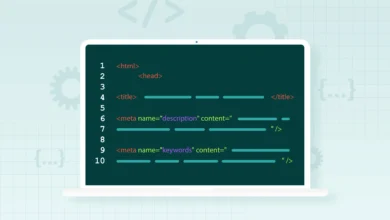
Most of us deal with the standard implementation: a line of code in the HTML <head> section of the page. However, you can also set a canonical via the HTTP header response. This is essentially the only way to canonicalize non-HTML files, like PDFs or images.
Don’t panic: Unless you are managing a site heavy with whitepapers or downloadable assets, you rarely need to worry about the HTTP header method. Just be aware that if a crawler reports a “canonical mismatch,” it might be because your server header says one thing and your HTML code says another.
Where duplicate URLs come from on business sites (so you know what to check)

Before we open a checker, we need to know where the bodies are buried. On US-based business sites—especially in e-commerce and SaaS—duplication usually isn’t malicious; it’s a byproduct of functionality. I usually notice these issues spike right after a site redesign or when a marketing team gets aggressive with tracking tags.
Common “Red Flags” for Duplication:
- URL Parameters: This is the biggest offender. Tracking IDs (
?utm_source=...), session IDs, or sort filters (?sort=price_asc) create millions of unique URLs for the same content. - Faceted Navigation: If your furniture store allows users to filter by “color,” “material,” and “price” simultaneously, you are generating massive index bloat unless canonicals are strictly managed.
- Trailing Slashes & Case Sensitivity:
/Productand/product/might look the same to a user, but they are different URLs to a bot. - Print Versions: CMS-generated print-friendly pages often duplicate the article entirely.
- Syndicated Content: If you republish content on Medium or LinkedIn, or have it syndicated to partners, you need cross-domain canonicals to protect your original ranking.
A simple ‘duplication risk’ checklist (before I open any tool)
Before I start a deep technical audit, I run through this mental checklist to gauge the severity of the problem:
- Run a
site:domain.com "product name"search in Google. Do multiple versions show up? - Check your CMS settings. Does it automatically add self-referencing canonicals to new pages?
- Click your site’s filters (price, color). Does the URL change? If yes, check the source code—does the canonical point back to the clean category page?
- Are your internal links consistent? (e.g., do you link to
/pricingin the menu but/pricing/in the footer?) - Check
robots.txt. Are you blocking parameters that Google has already indexed? - Review the “Duplicate without user-selected canonical” report in Search Console.
How I use a canonical tag checker to audit and fix duplication (step-by-step)

Running a canonical audit requires a systematic approach. You can’t just check if the tag exists; you have to check if it’s right. Below is the exact workflow I use when auditing a client site or a large content repository.
For businesses scaling their content production, perhaps using an AI article generator, maintaining this hygiene is even more critical. Automated publishing requires automated quality assurance, and checking canonicals should be part of your template logic.
Canonical Audit Worksheet
| URL Tested | Declared Canonical | Target Status | Self-Ref? (Y/N) | Internal Links Match? | Action Required |
|---|---|---|---|---|---|
| /shop/boots?color=black | /shop/boots | 200 OK | No | Yes | None (Correct) |
| /blog/post-1 | /blog/post-1 | 200 OK | Yes | Yes | None (Correct) |
| /old-category | /new-category | 301 Moved | No | No (Links to old) | Update internal links; fix chain |
| /staging/page | /staging/page | 200 OK | Yes | N/A | Fix: Canonicalize to prod URL |
Step 1: Build your URL list (single checks vs bulk checks)
If I am debugging a specific issue, I will grab the URL and run a single check. But for an audit, you need a representative sample. You don’t need to boil the ocean; start with 20–50 URLs covering different templates (products, categories, blog posts, landing pages).
- Source 1: XML Sitemap (these should all be clean, self-referencing canonicals).
- Source 2: Google Search Console “Excluded” report (grab the parameterized URLs).
- Source 3: Crawl your site with a tool like Screaming Frog or similar to get a raw list of what is live.
Step 2: Validate the canonical tag itself (format + placement)
Open your checker or view the source code. I literally scan for the basics first because you’d be surprised how often they break during a theme update.
- Placement: Is it in the
<head>? Tags in the<body>are ignored. - Quantity: Is there only one? Multiple canonical tags confuse Google, and they will likely ignore all of them.
- Format: Is it an absolute URL (
https://site.com/page) rather than relative (/page)? Relative URLs can cause havoc if the protocol (http vs https) or base domain shifts.
Step 3: Validate the canonical target URL (status codes and indexability)
This is a critical step that beginners often skip. You check URL A, and it points to URL B. Great, right? Not if URL B is a 404 error or a 301 redirect. If you are telling Google “this is the main page,” it has to actually load cleanly.
Use your tool to verify that the Target URL returns a 200 OK status. If the canonical points to a page that redirects, you have created a “canonical chain,” which sends conflicting signals and wastes crawl budget.
Step 4: Check site-wide consistency signals (the part most people miss)
Most “Google ignored my canonical” issues I see come down to conflicting signals. You cannot put a canonical tag on a page and then treat it like a second-class citizen elsewhere. Check these:
- Internal Links: Are you linking to the canonical version in your nav and text?
- Sitemap: Is the canonical version the one listed in your XML sitemap?
- Redirects: Ensure you aren’t redirecting users to the non-canonical version automatically.
Worked example: Parameter URL vs clean URL (before/after)
Let’s look at a real scenario for a US shoe retailer.
- The Problem URL:
example.com/boots?size=10&utm_source=email - The Content: Identical to the main boots page, just sorted by size.
- The Checker Result (Before): No canonical tag found. Google is indexing this parameter URL separately.
- The Fix: We configure the CMS to add
<link rel="canonical" href="https://example.com/boots" />to all parameter variants. - The Checker Result (After): Tag found. Target is 200 OK.
- Outcome: Over the next few weeks, the parameter URL drops from the index, and authority consolidates to the main
/bootspage.
Choosing a canonical tag checker: what to look for + tool capability comparison

There are plenty of tools out there, from browser extensions to enterprise crawlers. If you are a small site owner, a free browser extension is fine. If you manage e-commerce, you need bulk analysis. Here is how I categorize them so you can choose the right one for your needs.
| Tool Type | Best For | Key Feature to Look For | Examples |
|---|---|---|---|
| Browser Extension | Spot checking single pages while browsing. | Visual indicator (Green/Red) and copy-paste capability. | Detailed SEO, SEO Minion |
| Bulk Checker / Crawler | Site audits, migrations, and monthly health checks. | Detection of loops, chains, and mismatched HTML vs Header. | Screaming Frog, Sitebulb, DeepCrawl |
| Online Scanner | Quick validation without installing software. | Ability to check HTTP headers alongside HTML. | Various web-based SEO tools |
My minimum checklist for any canonical tag checker
If a tool cannot do these things, I don’t rely on it for professional audits:
- Detects if the canonical target is Absolute vs Relative.
- Checks the Status Code of the canonical target (must show 200 vs 301/404).
- Identifies Multiple Tags on a single page.
- Flags Self-Referencing vs Canonicalized status clearly.
- Allows Export of results (crucial for sharing with developers).
Canonical vs 301 redirects vs noindex: the decision framework I use
One of the most common questions I get is: “Should I canonicalize this page or just redirect it?” It depends on whether you want the duplicate page to remain accessible to users.
| Scenario | Solution | Why? |
|---|---|---|
| Page Moved Permanently (e.g., Old product URL changed to new structure) | 301 Redirect | Users and bots should never see the old page again. Pass all authority to the new one. |
Duplicate but Useful (e.g., Filtered product list ?sort=price or tracking URL) |
Canonical Tag | Users need to sort/filter, but Google shouldn’t index it. Keeps page usable but consolidates SEO. |
| Thin/Private Content (e.g., Thank You page, Admin login, Cart) | Noindex | These pages offer no SEO value and shouldn’t be in search results at all. Canonical is too weak here. |
What about robots.txt? (quick clarification)
I’ve seen this mistake too many times: a site owner adds a canonical tag to a page, and then blocks that page in robots.txt. Don’t do this. If you block Google from crawling the page, it can’t see the canonical tag you added. The tag becomes useless, and the URL might stay indexed (without content) simply because Google can’t crawl it to process the signal.
Common canonical tag mistakes (and the fastest fixes)

Even pros get this wrong during complex migrations. Here are the most frequent errors I encounter and how to fix them quickly.
- Pointing to a Redirect (The Chain): You canonicalize Page A to Page B, but Page B 301 redirects to Page C. This confuses bots and dilutes signals. Fix: Point Page A directly to Page C.
- Relative URLs: Using
href="/product"instead ofhref="https://site.com/product". If someone accesses your site viahttpor a subdomain, this breaks. Fix: Always use absolute URLs. - Self-Referencing Missing: Every page should ideally have a canonical tag pointing to itself if it’s the original. This prevents scrapers from stealing your content and claiming ownership. Fix: Add self-referencing tags to all master pages.
- Mixed Signals: Canonical says “Index Page A,” but Sitemap says “Index Page B.” Google will likely trust the sitemap or ignore both. Fix: Audit your XML sitemap to ensure it only contains canonical URLs.
- Multiple Canoniclas: Often happens when a CMS adds one and a plugin (like Yoast or RankMath) adds another. Fix: Check source code and disable the duplicate feature.
Mistake-to-fix cheat sheet (quick list)
- Chain? → Update link to final destination.
- Relative? → Switch to full https path.
- 404 Target? → Change canonical to a live equivalent page.
- Multiple tags? → Remove plugin conflicts.
- Ignored? → Check internal linking consistency.
Monitoring results: Search Console signals, when Google ignores canonicals, and what I do next
Once you’ve run your checks and deployed fixes, the waiting game begins. You need to monitor Google Search Console (GSC) to confirm that Google is honoring your request. Look specifically at the Page Indexing report.
You will typically see statuses like “Alternative page with proper canonical tag” (Success! Google accepted it) or “Duplicate, Google chose different canonical than user” (Failure—Google ignored you). When you are dealing with thousands of pages, monitoring this manually is impossible. For businesses operating at scale, ensuring your content pipeline—whether human-written or using a Bulk article generator—has built-in canonical logic is the only way to keep these reports clean.
Troubleshooting flow: what I check when Google selects a different canonical
When Google ignores your tag, don’t guess. Follow this order of operations to find the culprit:
- Check the Status: Is my preferred URL returning a 200 OK code?
- Check Internal Links: (Most common culprit) Am I linking to the wrong version in my navigation or footer?
- Check Redirects: Are there incoming redirects pointing to the version I don’t want indexed?
- Check Sitemap: Is the preferred URL the only one listed in the sitemap?
- Content Similarity: Is the content so similar that Google thinks the other page is more authoritative?
- External Links: Does the duplicate page have massive backlinks? (If so, you might need to 301 redirect it instead of just canonicalizing).
- Request Indexing: Once fixed, use GSC to inspect the preferred URL and request re-indexing.
FAQ (beginner-friendly, straight answers)
What is a canonical tag and why is it important?
It’s a line of code that tells search engines which version of a page is the “master” copy. It prevents duplicate content issues and ensures the right page ranks.
What should I do if Google ignores my canonical tag?
Check your other signals. Ensure internal links, sitemaps, and redirects all point to your preferred URL. Google usually overrides canonicals when other signals contradict them.
Can I use bulk canonical checkers for large sites?
Yes, absolutely. For sites with over 100 pages, a crawler-based tool is essential to identify patterns and errors efficiently.
When should I use canonical tags vs redirects or noindex?
Use canonicals for duplicates you want users to see (like filters). Use 301 redirects for moved content users shouldn’t see. Use noindex for private/thin pages (like carts).
What are common canonical tag mistakes to avoid?
Pointing to 404/301 pages, using relative URLs, having multiple tags on one page, and sending mixed signals via sitemaps.
Wrap-up: my 3-point recap + next actions
To keep your site’s indexing healthy, remember that this isn’t a one-time project—it’s an operational habit.
- Consistency is King: Your canonical tag, sitemap, and internal links must all agree on which URL is the “master.”
- Validate Targets: Never point a canonical to a broken or redirected page. It’s a waste of crawl budget.
- Monitor Changes: Use Search Console to spot when Google starts ignoring your hints.
Your Next Actions:
- Run a spot check on 20 of your top landing pages today.
- Export your “Duplicate” report from Search Console to see where you’re bleeding crawl budget.
- Update your publishing checklist to include a “Canonical Validation” step before any new content goes live.