SEO Audit Spreadsheet in Excel: Build a Smarter Audit
Introduction: I build an SEO audit spreadsheet I can actually act on

I used to export 12 different reports and still not know what to fix first. I had a Screaming Frog crawl on one monitor, Google Search Console (GSC) on another, and a client asking me why their traffic dropped, and honestly, the sheer volume of data was paralyzing. That is the common pain point for almost every intermediate SEO I meet: we have enough tools, but we lack a unified system to make decisions.
That is why I stopped delivering raw tool exports and started building a centralized SEO audit spreadsheet. This isn’t just a checklist; it is a workflow that forces me to triage issues based on business impact, not just technical severity. In this guide, I will show you how I build a workbook that consolidates technical crawls, GA4 performance data, and Core Web Vitals (CWV) into a prioritized 90-day roadmap. This is for US-based marketers and business owners who need a plan they can actually execute.
What you’ll have by the end
- A repeatable Excel workbook structure that serves as your SEO operating system.
- A Technical Tab that filters noise and highlights actual indexing blockers.
- A Content & Internal Links Tab to identify decay, cannibalization, and opportunity gaps.
- A Prioritization Matrix (Impact-Effort-Risk) to score tasks confidently.
- A 90-Day Roadmap I can hand to a stakeholder without needing to explain every cell.
SEO audit spreadsheet basics: what an SEO audit spreadsheet is (and why I still build my own)

An SEO audit spreadsheet is a decision layer. It sits between your raw data sources (crawlers, analytics, rank trackers) and your project management tool. While software suites are excellent at gathering signals, they are terrible at strategy. A tool might flag a missing H1 on a privacy policy page as a “High Priority Error,” but as a human strategist, I know that fixing it won’t move the revenue needle.
I build my own spreadsheets because I need to customize the prioritization logic. I need to treat tool scores as guides, not absolutes. If I relied solely on automated scores, I would spend months fixing minor code bloat while ignoring the fact that my key money pages are orphaned. Here is how I view the trade-off:
| Feature | Automated SEO Tool Report | Custom Audit Spreadsheet |
|---|---|---|
| Primary Function | Data collection and signal flagging | Data synthesis and prioritization |
| Context Awareness | Low (treats all pages equally) | High (prioritizes money pages) |
| Flexibility | Rigid, pre-set rules | Custom columns for business KPIs |
| Best For | Finding the problems | Deciding what to fix first |
When a spreadsheet beats a dashboard (and when it doesn’t)
Dashboards are great for monitoring; spreadsheets are for doing. If I am auditing a 50-page brochure site, I might just look at the tool dashboard and fix things. But if I am dealing with a 5,000-page ecommerce site or a SaaS blog with years of content history, I need a spreadsheet.
Spreadsheets win when I need to blend multiple data sources—like matching GSC click data with a custom crawl of internal link counts—to answer complex questions. However, if I need to check log files for crawl budget issues on a massive enterprise site, a spreadsheet will crash. My rule of thumb: Use a spreadsheet to build the plan; use a dashboard to track the results of that plan.
Workbook architecture for an SEO audit spreadsheet (tabs, fields, and data sources)

The structure of your workbook determines whether it becomes a useful tool or a digital junkyard. I have seen too many audits fail because the data was messy. The most critical step is establishing a unique key for every row, which is almost always the Normalized URL. This means lowercase, consistent trailing slashes, and stripped tracking parameters. If you don’t normalize URLs first, every XLOOKUP will lie to you.
Here is the architecture I use for a standard audit:
- Read Me: Instructions on how to update the data.
- Data Dictionary: Definitions of metrics (e.g., “Clicks = Last 30 days GSC”).
- URL Inventory (Master Tab): The single source of truth for every page.
- Technical: Crawl data and indexability status.
- Content & Internal Links: Traffic, engagement, and link counts.
- Authority/Backlinks: External equity signals.
- Dashboard + Roadmap: The executive view.
My recommended column structure ensures I can answer questions quickly. I pull data from GSC (performance), GA4 (engagement), a crawler like Screaming Frog (technical), and PageSpeed Insights (CWV).
My minimum viable tabs (if you want to keep it simple)
If you are auditing a smaller site, you don’t need seven tabs. Start here:
- URL Inventory: A list of all pages with basic metrics.
- Technical: Pass/Fail checks for status codes and indexing.
- Content: Traffic data to spot decay.
- Roadmap: The to-do list.
Importing data without breaking your sheet (copy/paste vs Power Query)
There are two ways to get data in. The beginner method is to export CSVs and copy/paste them into “Raw_Data” tabs. I keep these raw tabs read-only because I have overwritten my source data more than once, and it is a pain to fix.
The better way, if you are comfortable, is using Power Query in Excel. It connects directly to your CSV exports or API connectors. This allows you to click “Refresh All” to update your audit next month without copy-pasting a single cell. The flow should always be: Exports -> Raw Data Tabs -> Cleaned Analysis Tabs -> Dashboard.
Core Excel functions I rely on for audits
I don’t use complex macros. I rely on a few robust functions that handle data matching gracefully:
- XLOOKUP: I use this instead of VLOOKUP because it doesn’t break when I insert columns, and it handles errors (like missing URLs) with a custom “Not Found” message.
- IF / IFS: Essential for creating flags, e.g.,
=IF(Status Code <> 200, "Check", "OK"). - COUNTIFS: Great for summarizing data, like counting how many pages are “Indexable” vs. “Non-Indexable.”
- LEN: To check title tag character counts quickly.
Building the Technical tab in Excel: crawl coverage, indexation, and Core Web Vitals

The Technical tab is where I look for “blockers”—issues preventing Google from seeing or ranking the page. When I build this, I am not looking for perfection; I am looking for problems that cost money. I treat tool scores (like a generic “health score” of 85/100) as signals to investigate, not the final grade. A site can have a 95 health score and still be de-indexed because of a rogue canonical tag.
I organize this tab by pulling a crawl export and mapping the most critical technical columns. I also integrate Core Web Vitals (LCP, INP, CLS) here because user experience is technically a ranking factor, even if a minor tie-breaker. When I see a “Noindex” tag, I don’t just mark it as bad; I manually check the URL. I open the source code to confirm it wasn’t a staging rule that accidentally leaked into production.
The technical columns I include (my starter set)
I avoid checking 50 things. I check the 10 things that break sites:
- URL: The normalized address.
- Status Code: 200, 301, 404, 5xx.
- Indexability: Indexable vs. Non-Indexable.
- Canonical Link Element: Does it match the URL? (Self-referencing is good).
- Meta Robots: Looking for ‘noindex’ or ‘nofollow’.
- Title Tag Length: Is it over 600 pixels (approx 60 chars)?
- H1-1: Is it missing or duplicated?
- Word Count: Helps identify thin content.
- CWV – LCP: Loading performance.
- Notes/Action: A manual text field for my comments.
Conditional formatting rules that make issues obvious
I use visual cues so I can scan the sheet in seconds during a client call:
- Status Codes: Highlight any cell not equal to 200 in Red.
- Meta Robots: Highlight text containing “noindex” in Purple (needs attention).
- Titles: Highlight
LEN > 65in Orange (potential truncation). - Word Count: Highlight
< 300in Yellow (potential thin content).
Quick QA: how I avoid false positives from crawl exports
Before I present findings, I sanity-check. I grab a random sample of 10 URLs flagged as errors. I check if the canonical mismatch is intentional (e.g., parameters pointing to a root page). I check if the “missing H1” is just the crawler failing to render JavaScript. I have been embarrassed before by reporting a sitewide error that was just a crawler configuration issue, so now I trust, but verify.
Building the Content + Internal Links tab: find decay, thin pages, cannibalization, and on-page gaps

This is where the money is made. Technical SEO lets you play the game; Content SEO helps you win it. In this tab, I map performance data to my URL inventory. I am looking for patterns: pages that used to get traffic but have decayed, multiple pages fighting for the same keyword (cannibalization), or important pages that have zero internal links (orphans).
When I find a cluster of pages that need updating or rewriting, this is often where the workflow bottlenecks. I flag them, but the execution takes time. Once the spreadsheet tells me which pages need refreshes, I often use tools to speed up the drafting process. A tool like the AI article generator can help produce first drafts for these refreshes, but I still manually QA the output to ensure the intent matches my audit findings.
My ‘content health’ signals (beginner-friendly metrics)
To judge content, I look at these metrics side-by-side:
- GSC Clicks & Impressions (Last 90 Days): Is Google showing it?
- GA4 Sessions: Are users landing there? (GA4 attribution isn’t perfect, so I look for directional patterns).
- Engagement Rate: Do they stay?
- Update Date: How old is the content?
- Internal In-Links: How many other pages point here?
How I flag cannibalization in a spreadsheet
I don’t trust tools to catch all cannibalization. I export query data from GSC, then I create a pivot table grouped by the “Primary Keyword” or Topic. If I see multiple URLs receiving significant impressions for the same query, I flag it. A common beginner trap is seeing two URLs ranking and assuming it is bad; I only flag it if they serve the exact same user intent. If they do, I mark one for consolidation.
Internal linking checks tools miss (and how I capture them)
Automated audits often miss the context of site architecture. A page might have 50 internal links, but if they are all from the footer, that is very different from 50 contextual in-content links. I try to calculate a “Link Depth” or simply sort my “Money Pages” by Internal In-Links (Unique) ascending. If a key service page has fewer than 5 internal links, it goes straight to the top of my priority list.
Generative-AI readiness: adding a ‘content influence’ column set
SEO is evolving. We aren’t just ranking for blue links; we are trying to influence AI-generated answers. I have started adding experimental columns to my content tab to measure “Answer Readiness.” I check:
- Direct Answer (Y/N): Does the content explicitly answer the core query in the first 200 words?
- Data/Stats (Y/N): Do we provide unique data that an AI could cite?
- Definition Present: Is there a clear “What is X?” structure?
Adding an Authority/Backlinks tab (lightweight, beginner-friendly)

I keep this section intentionally lightweight. Unless I am doing a forensic link audit (which is a different beast), I just need to know if my key pages have authority. I import data focusing on Referring Domains and Top Anchor Text. I care most about links pointing to revenue-driving pages and key guides. If a competitor has 50 links to their “Best X” guide and we have 2, no amount of on-page tweaking will fix that gap.
The 5 backlink fields I actually use in my spreadsheet
I don’t track 40 link metrics—these five are enough for triage:
- Target URL: Where the link goes.
- Referring Domains (Count): Quantity signal.
- Domain Authority/Rating: Quality signal (directional).
- Top Anchor Text: Relevance signal.
- Status: Live or Lost.
From findings to decisions: scoring, impact–effort–risk, and a 90-day roadmap

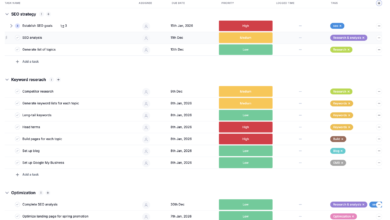
This is the most important part of the spreadsheet. This is how you turn rows of data into a business case. I use a scoring matrix: Impact × Confidence ÷ Effort (adjusted for Risk). A high-impact, low-effort fix is a “Quick Win.” A high-impact, high-effort fix is a “Project.”
Once I have my scored list, I assign owners and dates. The technical fixes go to developers; the content fixes go to the editorial team. If the content plan requires a high volume of new articles or heavy updates, this is where I might plug in an Automated blog generator to handle the heavy lifting of the production schedule, ensuring we can actually hit the deadlines I’ve set.
My scoring columns (copyable template)
Add these columns to your dashboard or master list to drive decisions:
- Issue Category: Tech, Content, Link, UX.
- Business Impact (1-5): 5 = Direct revenue impact.
- Effort (1-5): 5 = Requires engineering sprint or rewrite.
- Risk (1-5): 5 = Could tank traffic if we mess up.
- Priority Score: Formula:
=(Impact + (5-Effort)) - Risk. (Customize this math to fit your style). - Owner: Name of the person responsible.
- Due Date: 0-30 days, 31-60 days, 61-90 days.
Building a simple dashboard (without overengineering it)
I only build dashboards that answer the question “what do we do next?” I usually include two pivot charts: one showing “Issues by Priority” (High/Med/Low) and one showing “Tasks by Owner.” This lets me show a stakeholder exactly where the bottleneck is. I also like a simple scorecard showing “Traffic at Risk”—the sum of traffic to pages with Critical errors.
Common spreadsheet SEO audit mistakes (and how I fix them)
I have made every mistake in the book. Here are the ones that bite the hardest, so you can avoid them.
- Not Normalizing URLs:
Symptom: XLOOKUP returns #N/A even though the page exists.
My Fix: I create a “Clean URL” column in every raw tab that strips protocols, www, and trailing slashes before matching. - Overwriting Raw Data:
Symptom: You try to refresh the pivot table, but the source data is corrupted or formatted wrong.
My Fix: I never edit the “Raw_Export” tabs. I pull data from them into my analysis tabs using formulas. - Confusing Findings with Tasks:
Symptom: The roadmap has 500 rows like “Missing H1.”
My Fix: A finding is an observation; a task is a grouped action. I group 50 missing H1s into one task: “Update H1 tags for Blog Category.” - Ignoring the Time Dimension:
Symptom: Looking only at last month’s traffic misses the fact that the page has dropped 50% year-over-year.
My Fix: I try to include a “Year-over-Year Change” column in my content tab. - No Data Dictionary:
Symptom: Six months later, I forget if “Clicks” meant GSC clicks or GA4 events.
My Fix: I always add a “Definitions” tab. It saves me from looking incompetent in future meetings.
My quick QA checklist before I trust the numbers
Before I send this to a client or boss, I run this 60-second routine:
- Check for #N/A or #REF errors in the main lookup columns.
- Filter the “Status Code” column to ensure I didn’t miss any 404s.
- Sum the “Clicks” column and compare it to the GSC total to ensure I haven’t dropped rows.
- Spot-check 3 random URLs to ensure the data matches the live site.
FAQs: SEO audit spreadsheets, AI-assisted templates, and what tools usually miss
Why build your own SEO audit spreadsheet instead of using tools?
Tools are inputs; the spreadsheet is the operating system. Every business is different. A local service business cares about different metrics than a national ecommerce site. Building your own sheet allows you to prioritize based on your business goals, not a generic algorithm.
What modern features should a spreadsheet SEO audit include?
A modern sheet must go beyond meta tags. It needs to include GA4 engagement metrics, Core Web Vitals (real user data), and a prioritization scoring system. If you aren’t scoring tasks by Impact/Effort, you aren’t auditing; you’re just listing problems.
How can AI help with SEO audit spreadsheets?
AI is great for accelerating the setup. I use AI to help me generate complex Excel formulas or draft the executive summary based on my findings. Tools like the AI SEO tool suites are becoming powerful assistants for this data processing. However, I always test AI-generated formulas on a small sample first—AI can be confident but wrong about Excel syntax.
What common audit oversights should I add manually?
Tools struggle with context. They often miss Index Bloat (indexing low-value pages), Internal Linking Structure (orphaned money pages), and Cannibalization. I add these checks manually because they require human judgment to solve.
How is SEO evolving with generative AI (and how should my spreadsheet adapt)?
We are moving from “ranking” to “answering.” My spreadsheets now include columns for content clarity and comprehensiveness. I am auditing for “Answer Readiness”—ensuring my content is structured in a way that AI engines can easily digest and cite.
Conclusion: my next-steps checklist for maintaining your SEO audit spreadsheet

The goal isn’t to build the perfect spreadsheet; it’s to build one you will actually use. If I were starting from scratch this week, I would focus on three things:
- Centralize: Get all your URL data into one Master Inventory tab.
- Prioritize: Apply the Impact-Effort-Risk score to the top 20 issues only.
- Execute: Turn those top 20 issues into a 90-day roadmap with names and dates.
3-bullet recap + 30-minute kickoff plan
If you have 30 minutes right now, do this:
- Minute 0-10: Export your “All Pages” report from GSC and paste it into a new Excel tab named “URL_Inventory.”
- Minute 10-20: Export a crawl summary (or run a small crawl) and VLOOKUP the Status Codes into your inventory.
- Minute 20-30: Add a “Priority” column and mark the top 5 pages that need immediate attention. You have now started your audit system.